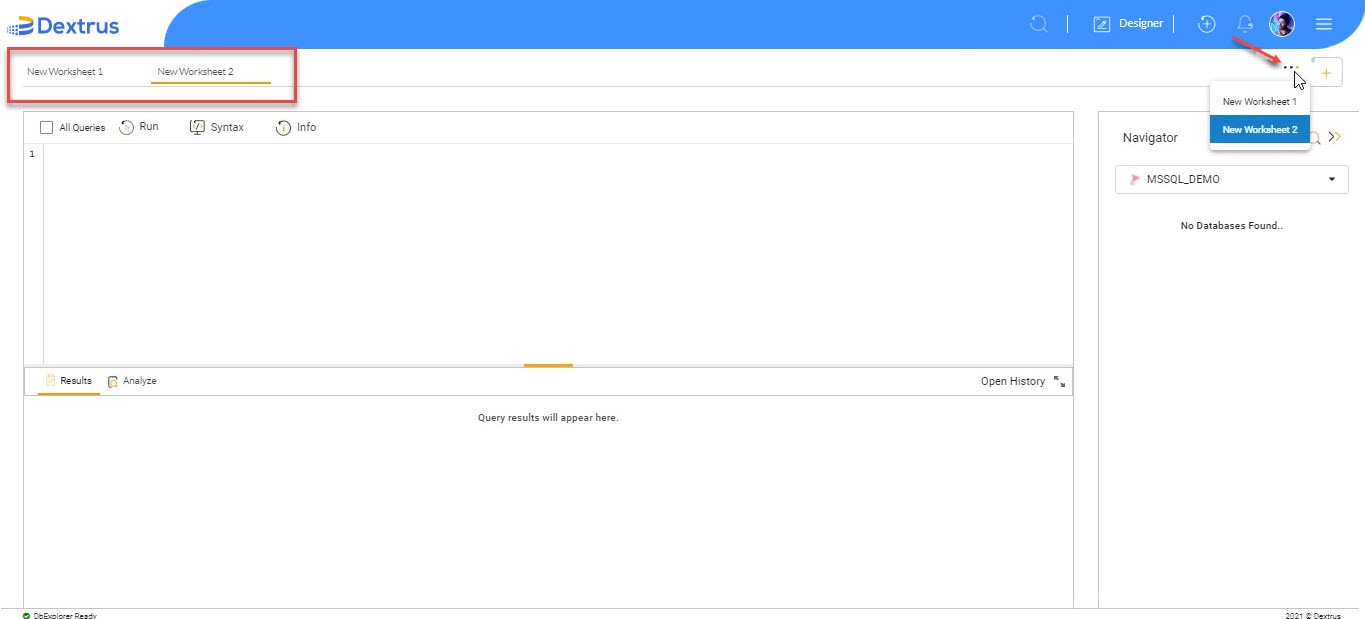
In this topic, you will learn, how to create a New Worksheet.
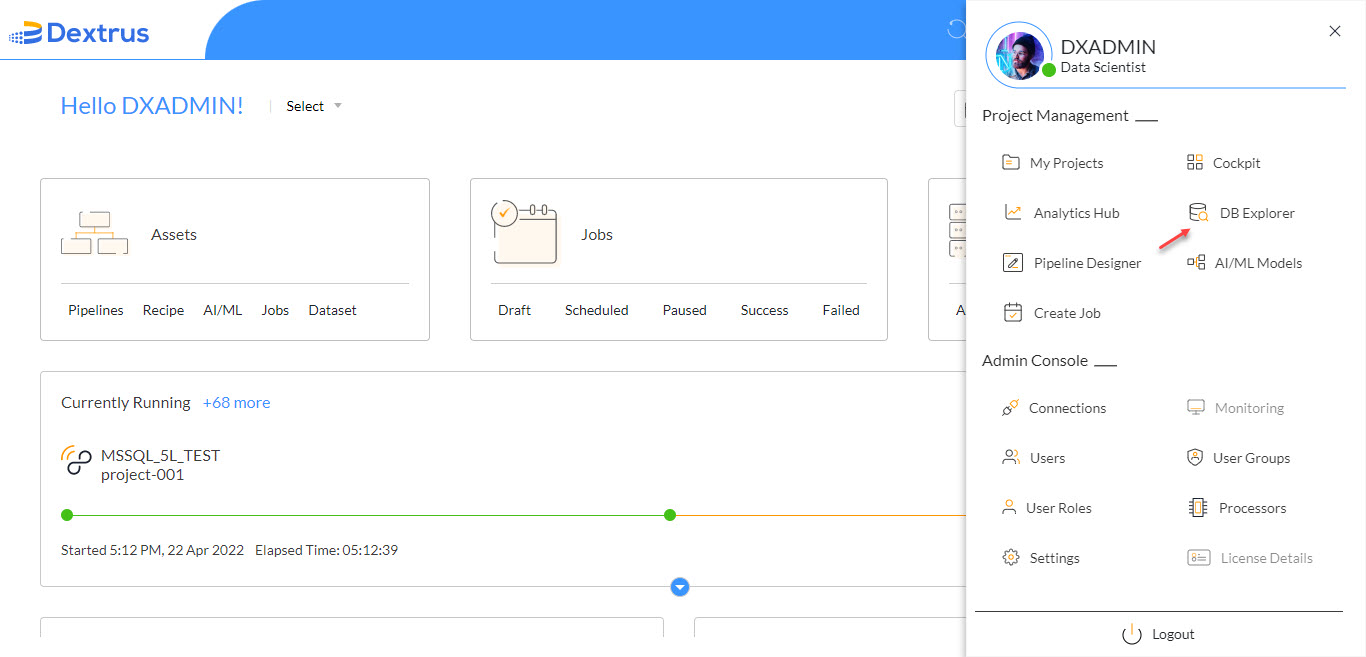
- After successful login to the Dextrus application, navigate to the hamburger menu and click the DB Explorer option.
- Click the
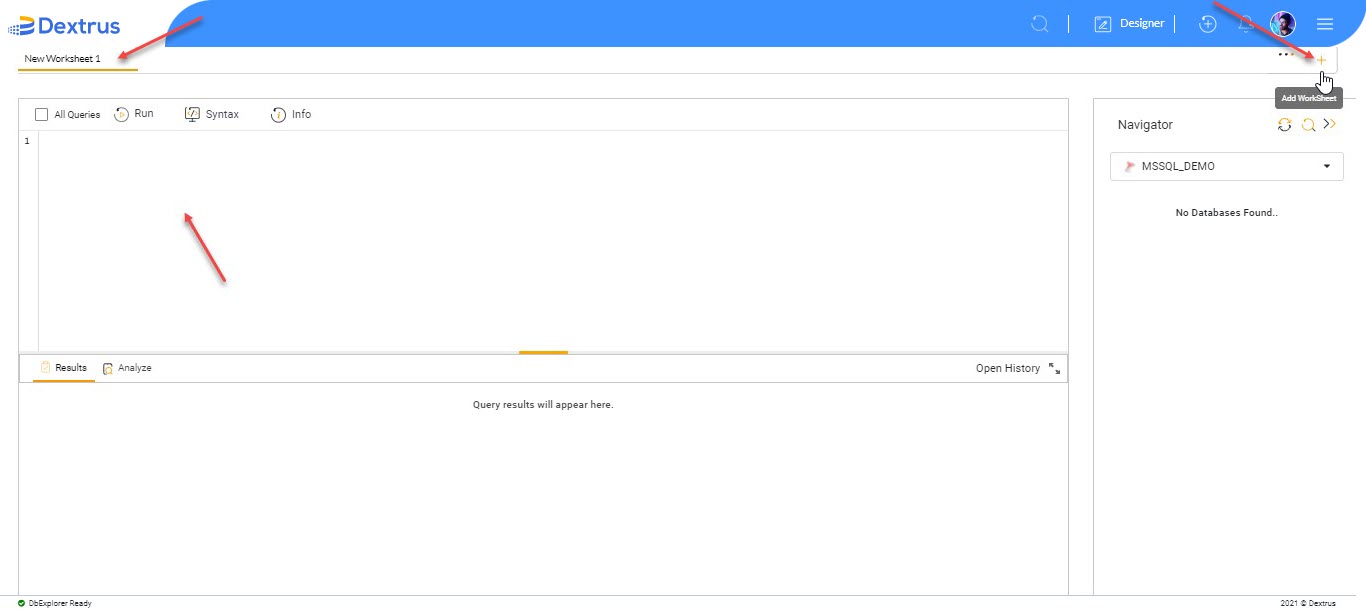
 plus icon to add a new worksheet.
Note: A new worksheet creates a new blank workspace for you to type queries as required.
Note: Hover on the icons to view tooltips.
- A ‘New Worksheet1’ provisions you to write queries.
- Click the
 ellipses icon to view previously created worksheets. A drop-down list appears below the ellipses icon displaying the list of available worksheets.
 - The active worksheet is highlighted with an orange color underline.
- To close any of the existing New Worksheets, hover on any of them and click the
 close icon.