In this topic, you will learn about the Jobs asset capabilities in the Project dashboard. The jobs are categorized into All Jobs, Scheduled, Paused, and Draft.
- On the selected Project dashboard page, click the Jobs asset.
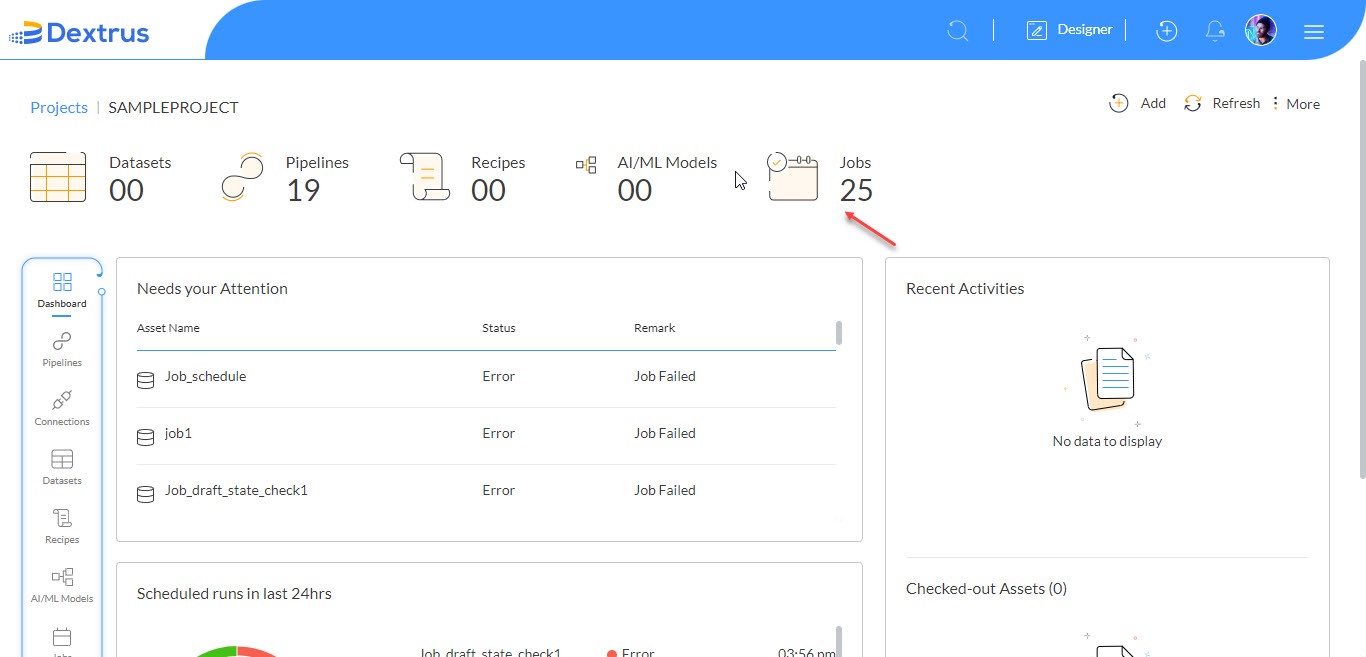
- The project dashboard is updated with the list of All Jobs related to the selected project name.
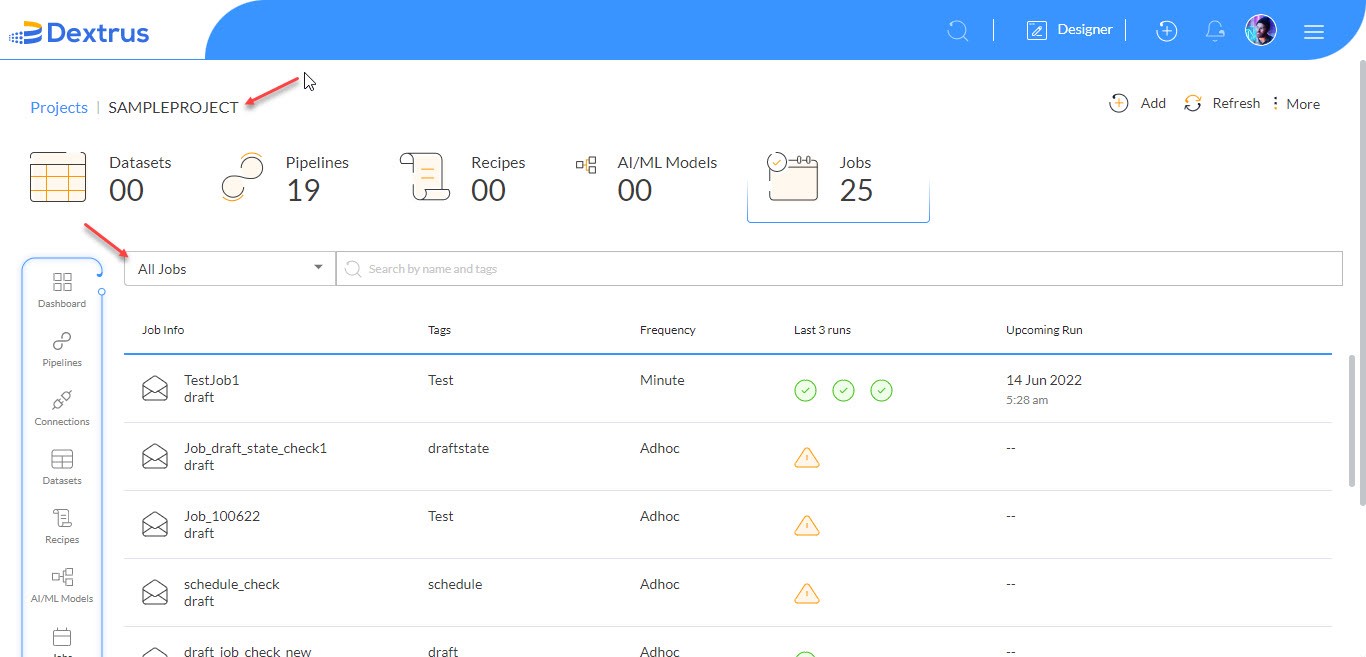
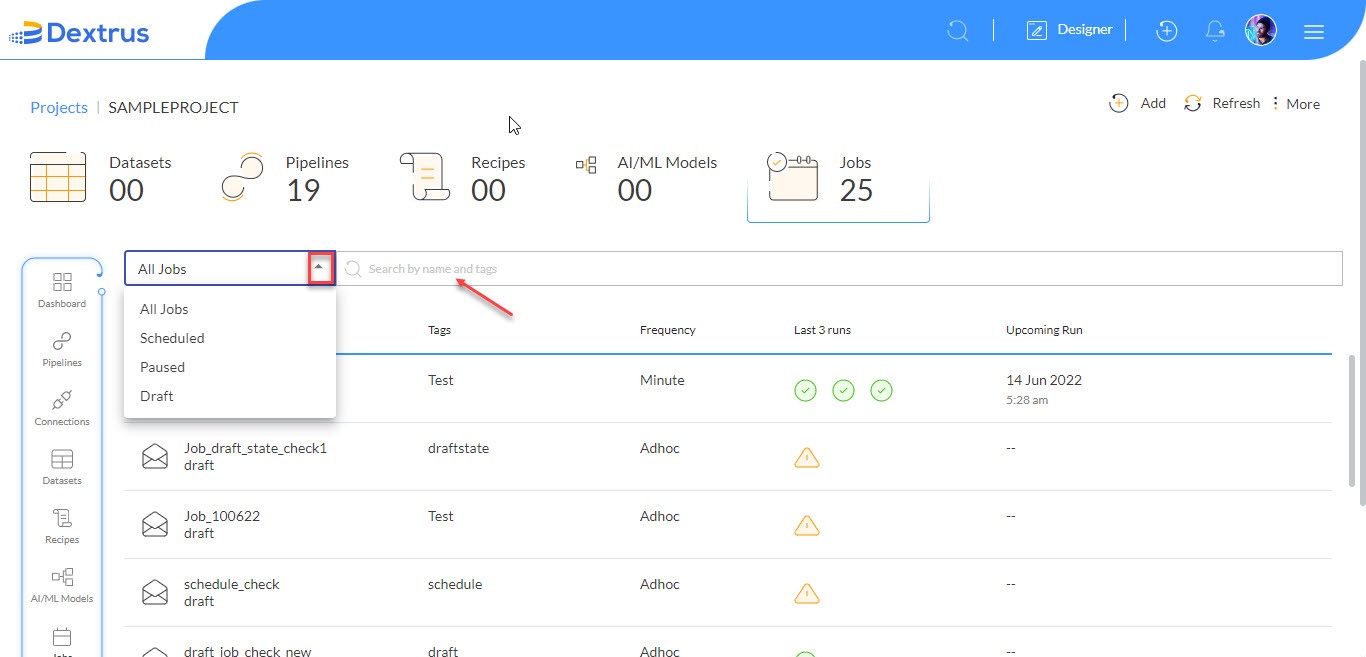
- Click the All Jobs drop-down list to view Scheduled, Paused, and Draft jobs. You can filter the jobs list based on the required filter condition.
- You can search for a particular job by name and tags from the Search by name and tags text field.
- Click the Pause All Jobs option beside the Add button to pause scheduled jobs.
- A Pause All Jobs pop-up window is displayed.
- Click the Confirm button to confirm the Pause action on all scheduled jobs.
Note: Pause All Jobs option is enabled if you have at least one scheduled job in the dashboard.
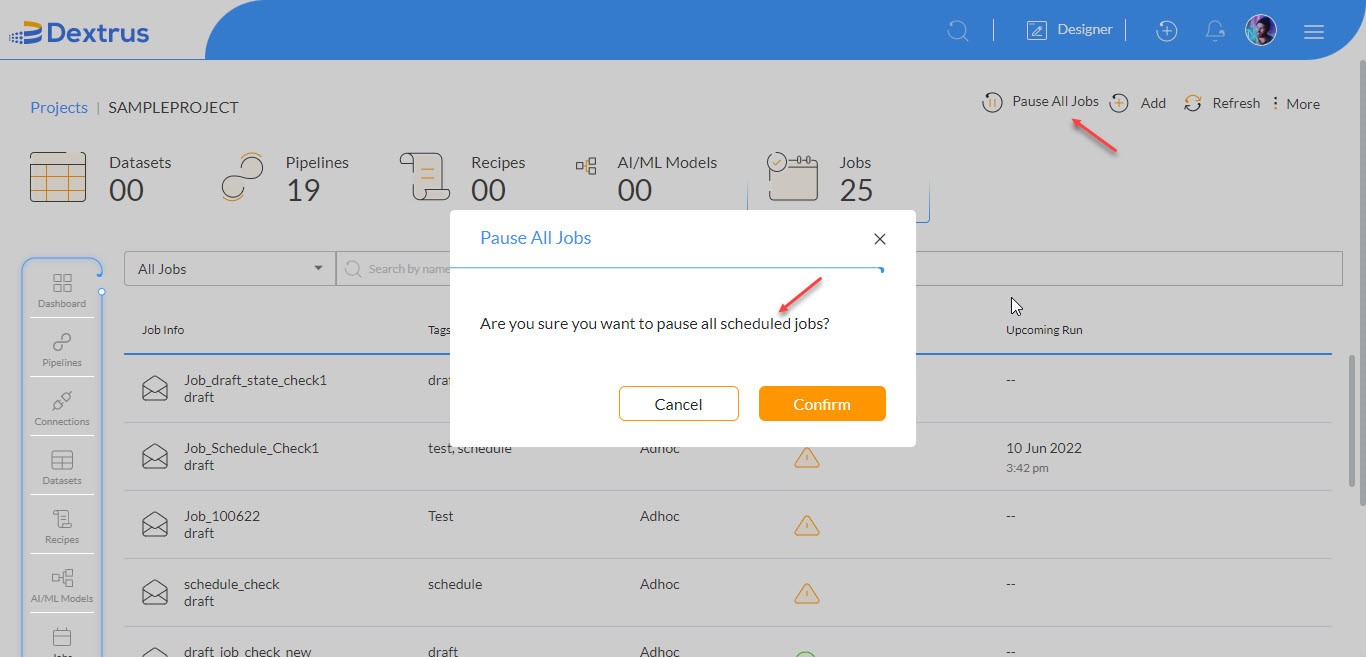
- The Paused status is updated for all scheduled jobs as displayed under the Job Info column name.
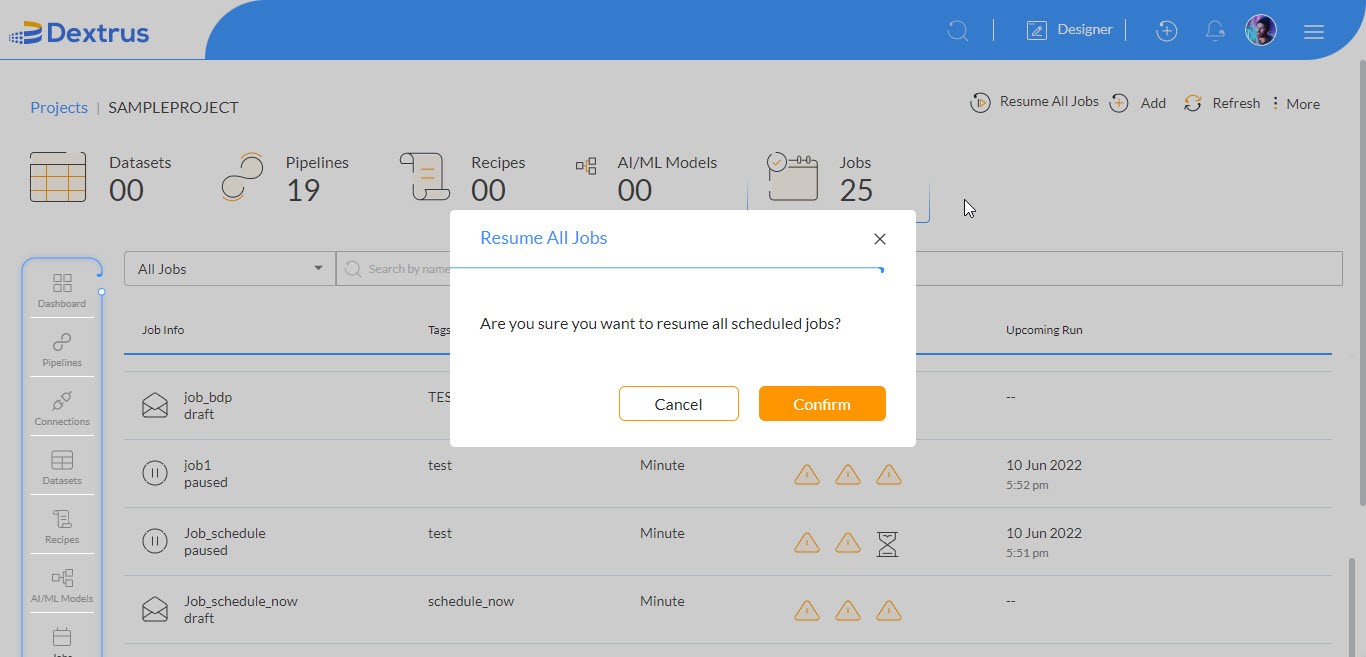
- Click the Resume All Jobs option beside the Add button to resume all paused scheduled jobs.
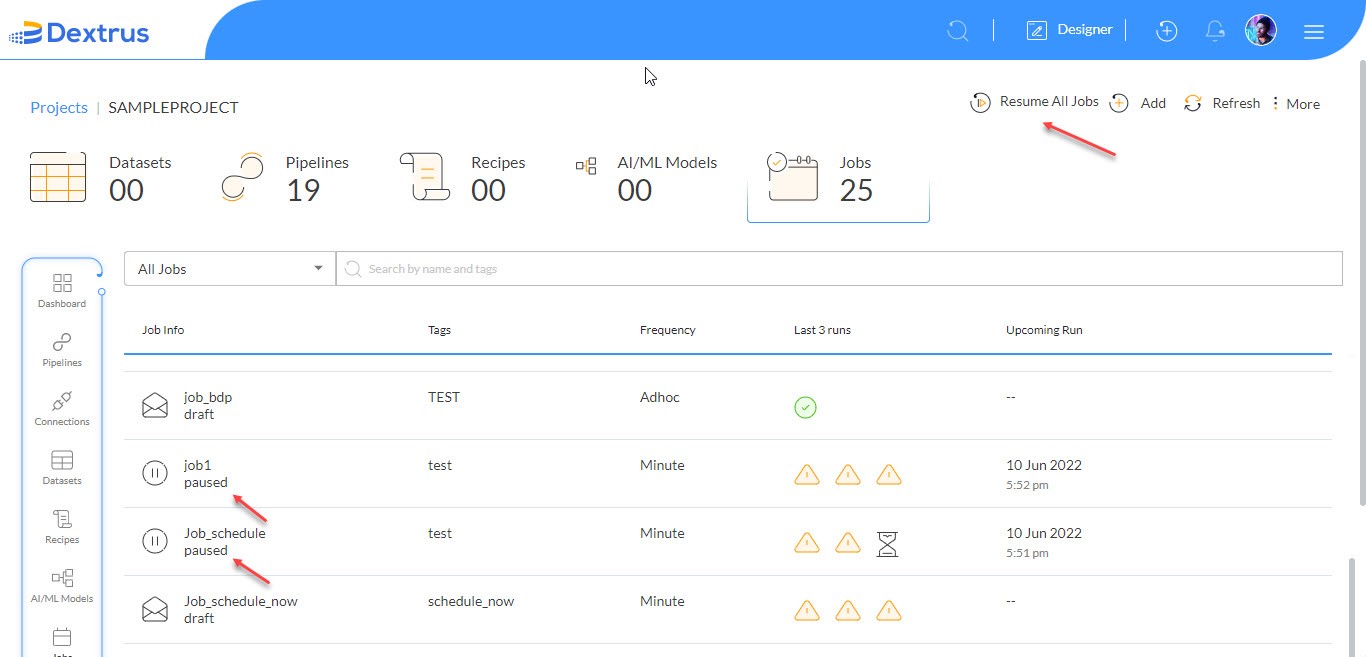
- A Resume All Jobs pop-up window is displayed.
- Click the Confirm button to resume all the paused scheduled jobs.
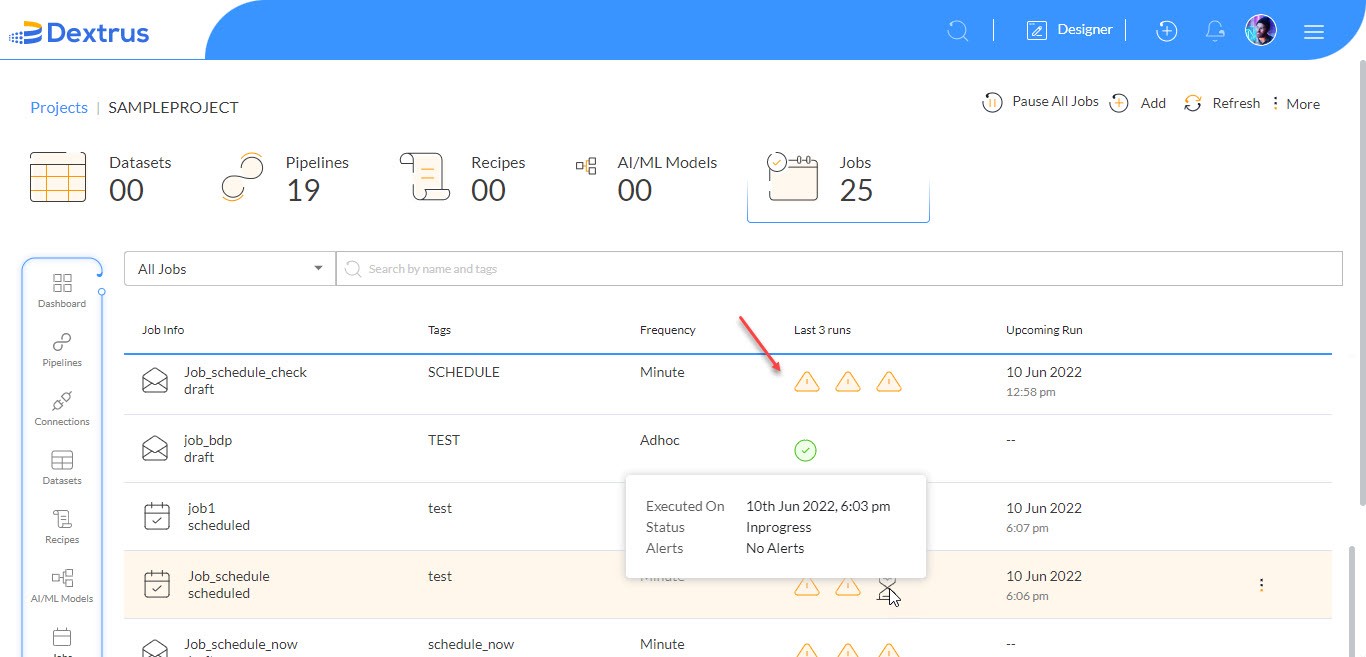
- Hover on the icons displayed under the ‘Last 3 runs’ column to know the Executed On, Status, and Alerts information.
- Warning icon
 denotes Errored status.
 - Success icon
 denotes Success status.
 - In Progress icon
 denotes the current running status.
- Hover on the jobs list to highlight a job and view the vertical ellipses option.
Note: The More option displays different options for the Draft and Scheduled jobs.
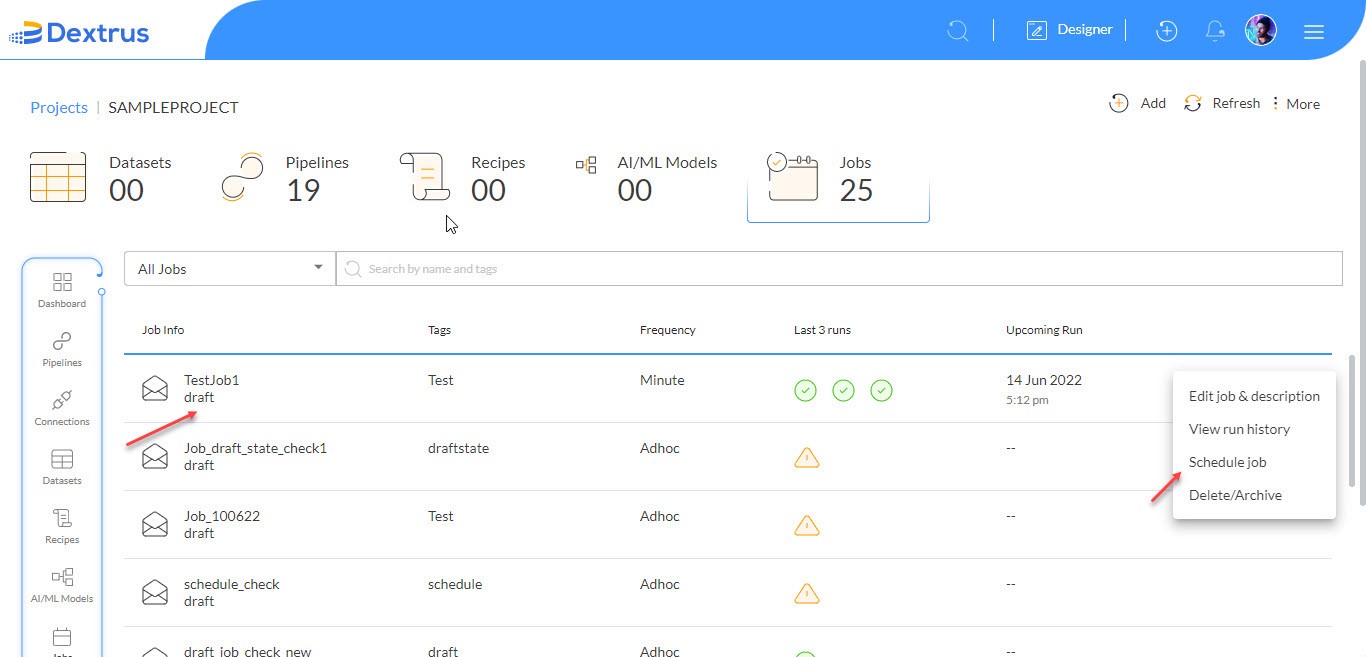
- Click the More option against the selected Job (draft).
Note: A Job with a draft denotes that all scheduled runs are completed for it and there are no further runs.
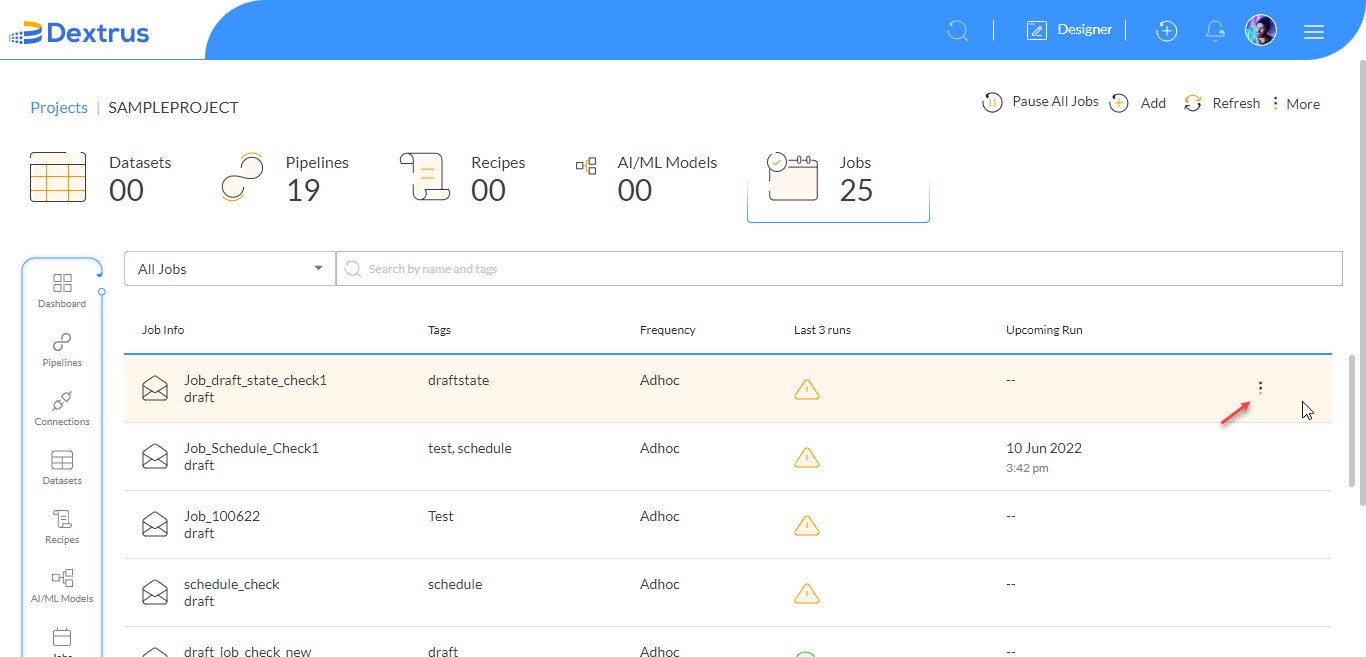
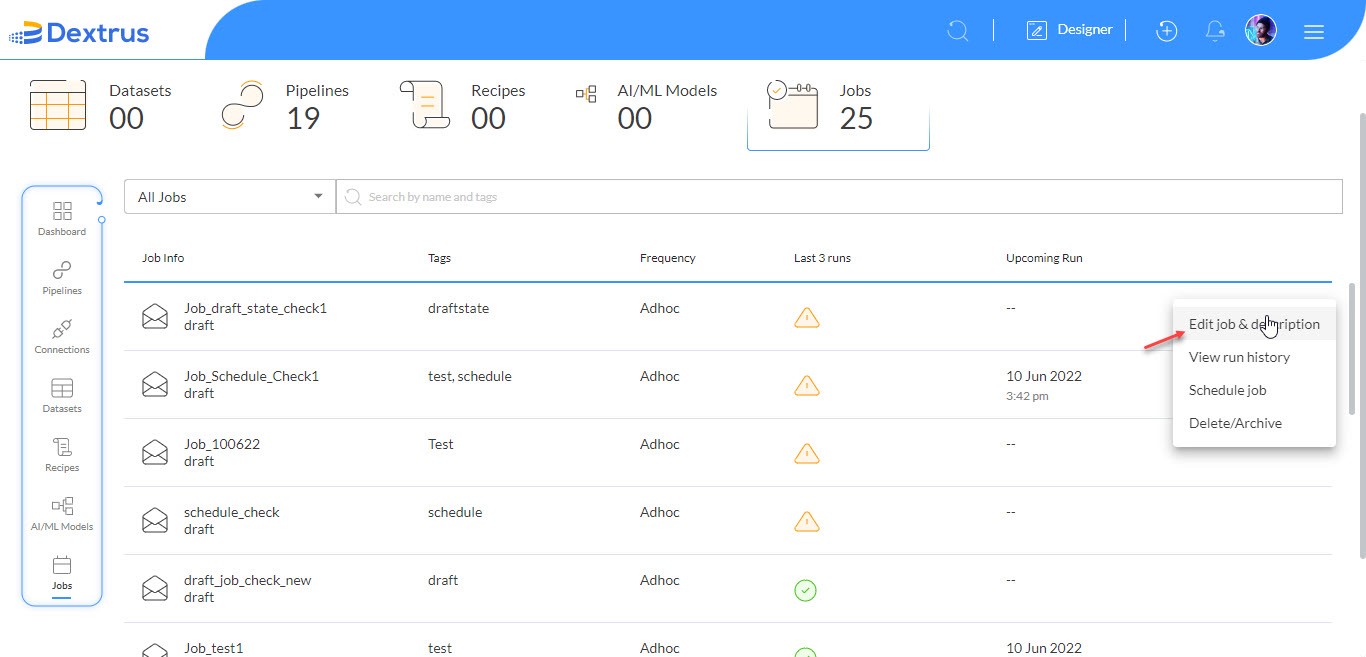
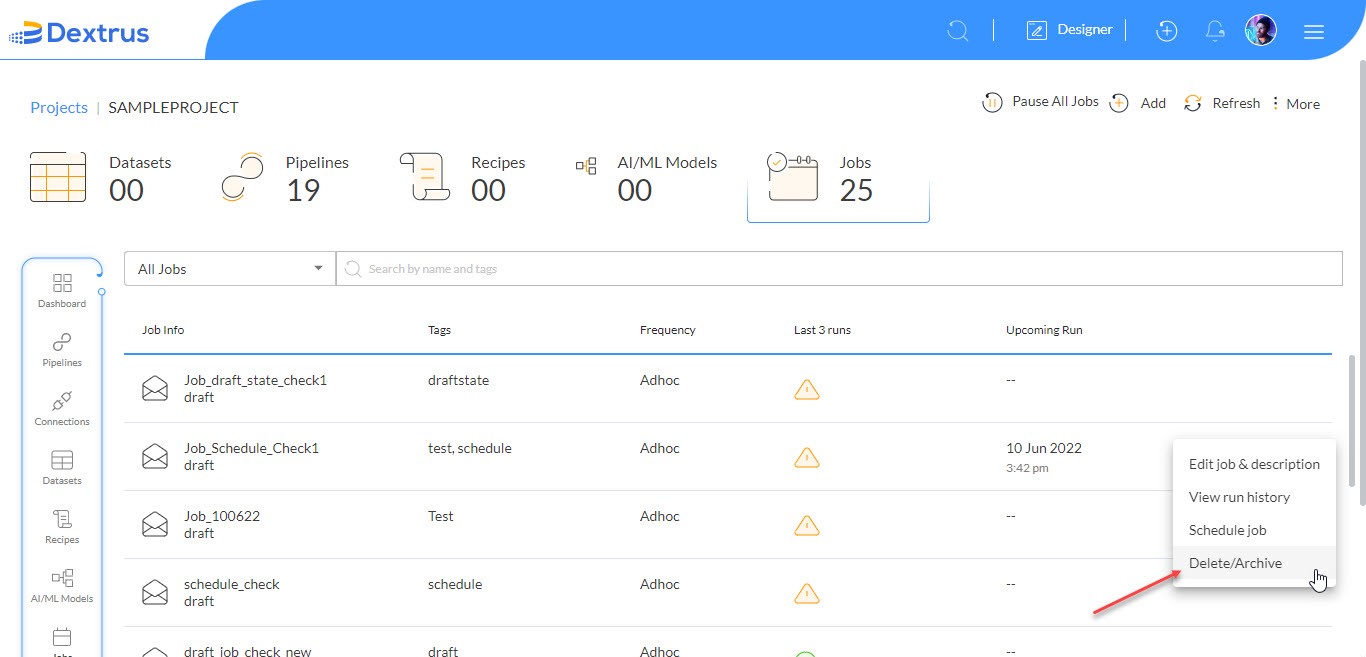
- A list appears with Edit job & description, View run history, Schedule job and Delete/Archive options.
- Click the Edit job & description option to edit the selected Job name, Tags, and Description (optional).
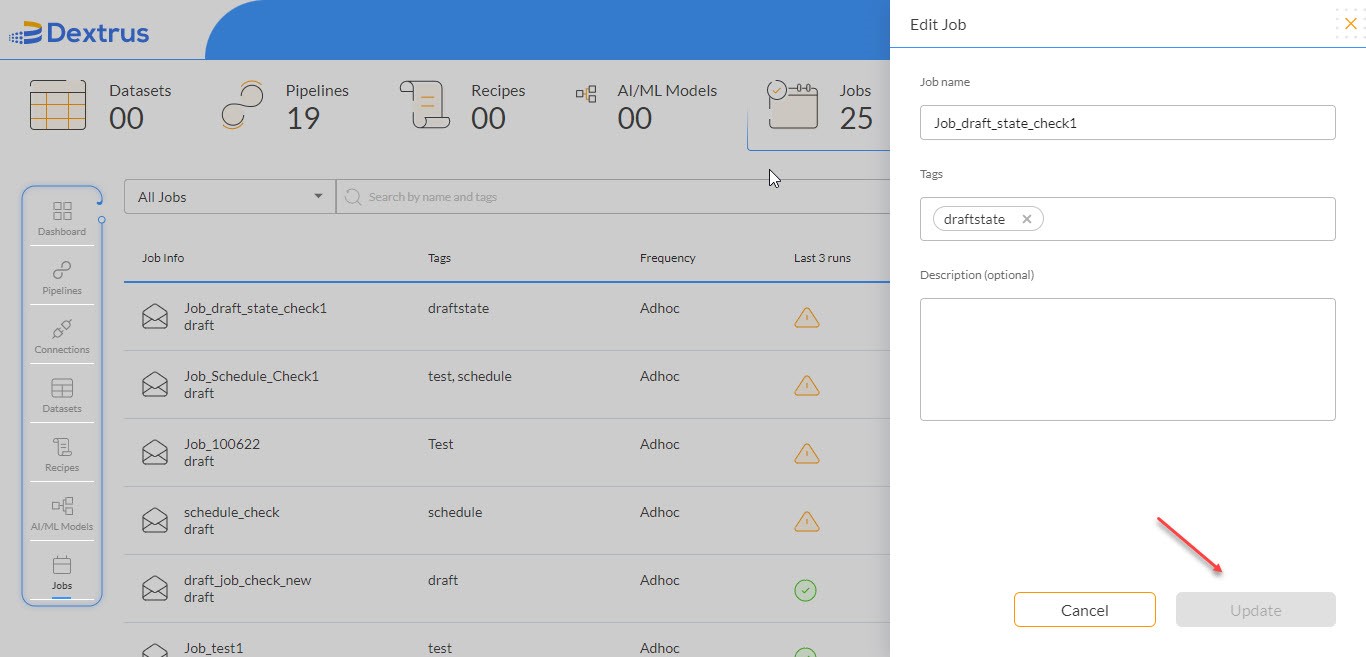
- Type in the new changes you want to change for the selected job.
Note: The update button is enabled only when you make changes in the Edit Job window.
- Click the Update button to apply the changes.
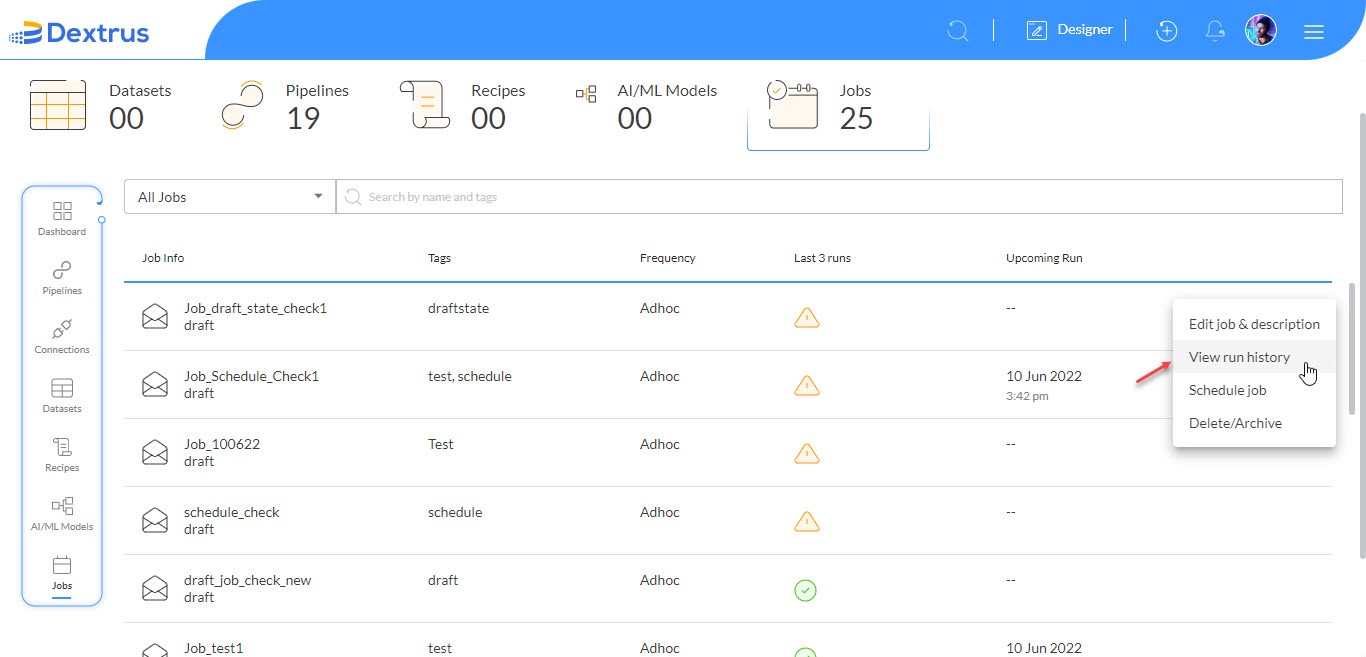
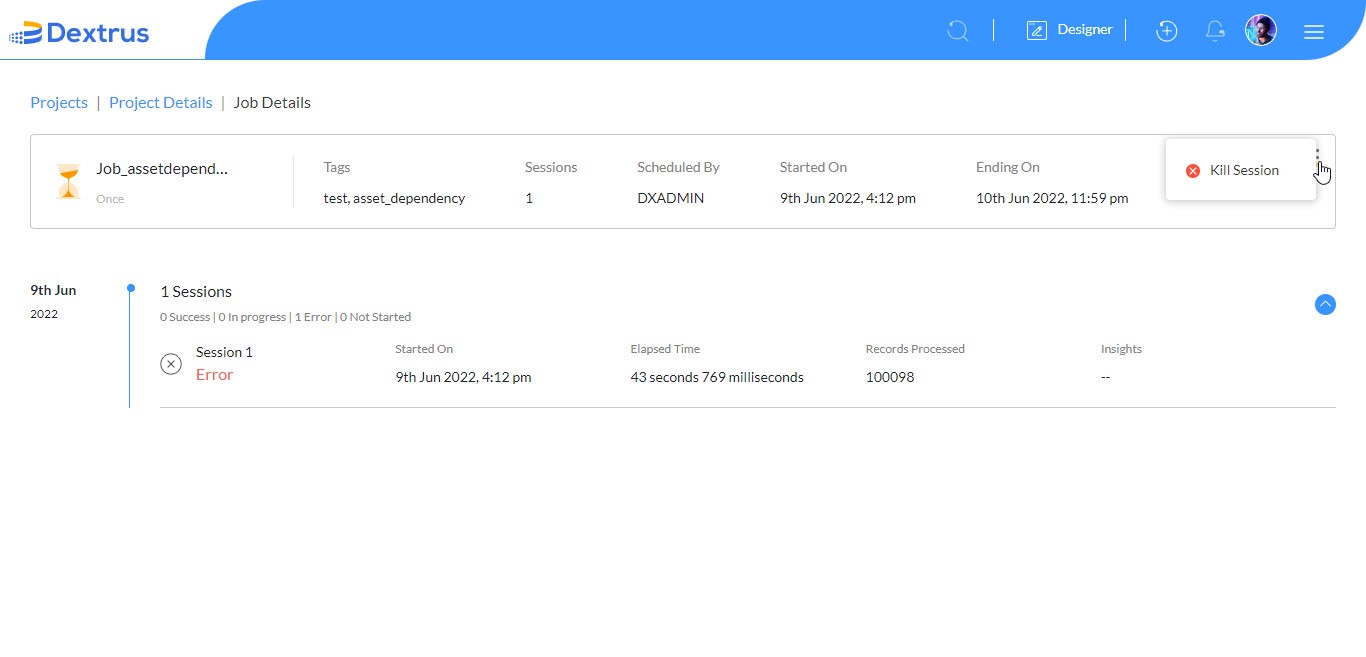
- Click the View run history option to view the complete Job (Session) Details of the selected job.
- The selected Job Details complete information is displayed.
- Navigate to the vertical ellipses.
- Click the Kill Session button on the vertical ellipses to terminate all the sessions.
- A Terminate Session pop-up window appears to confirm the Termination action.
- Navigate back to the selected project dashboard page again by clicking the Project Details option.
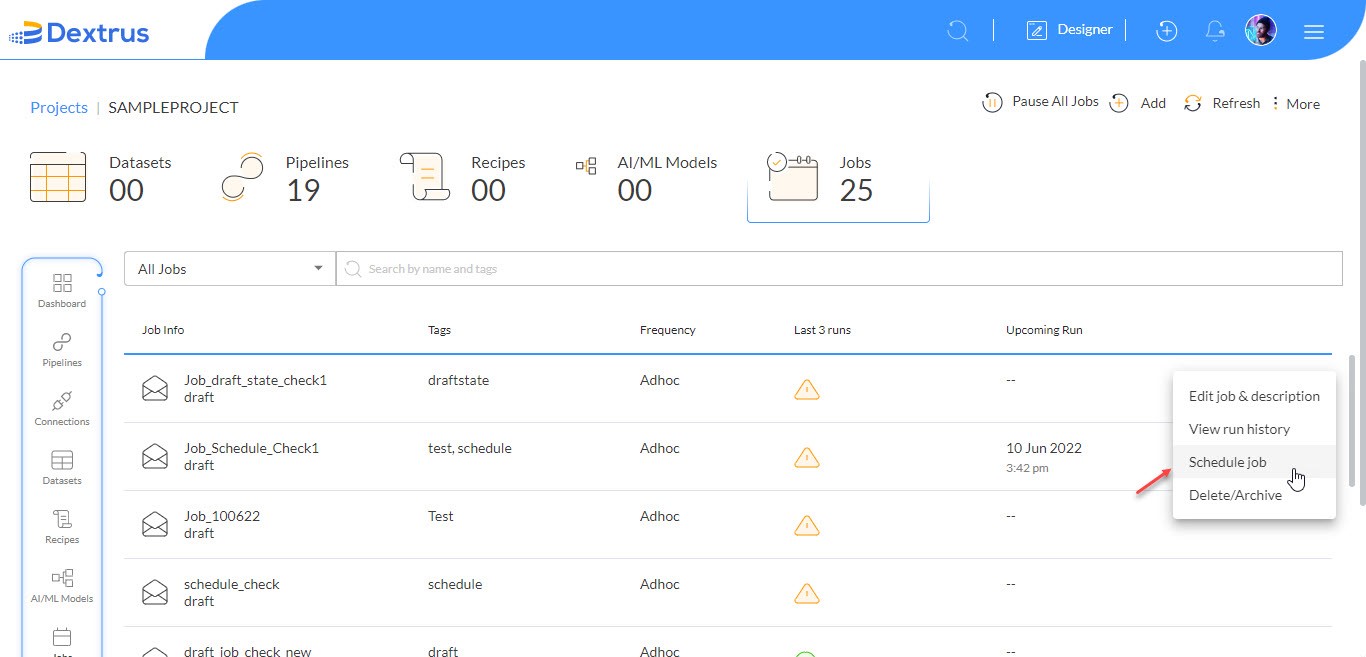
- Click the Schedule job option to schedule a draft job.
Note: The Schedule Job option appears only when the Job is in a draft state.
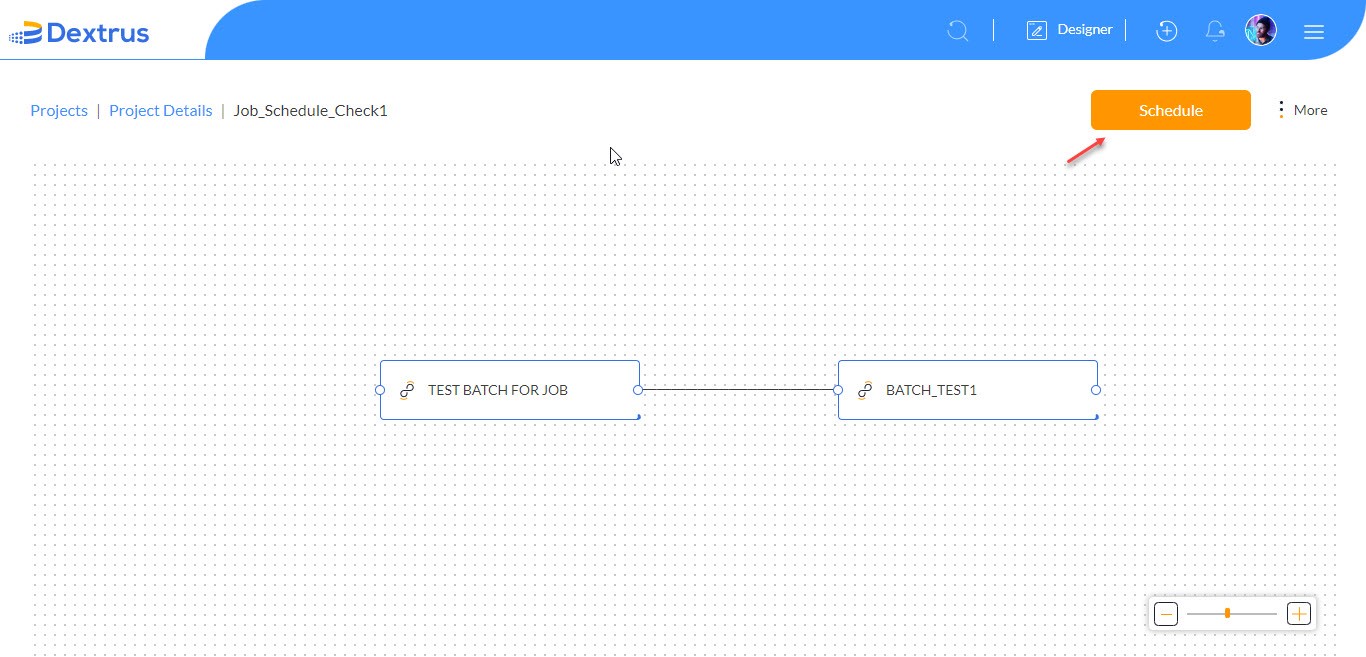
- Click the Schedule button to schedule the selected draft job.
- Click the Delete/Archive option to delete the selected job.
- A Delete job pop-up window appears to delete the selected job.
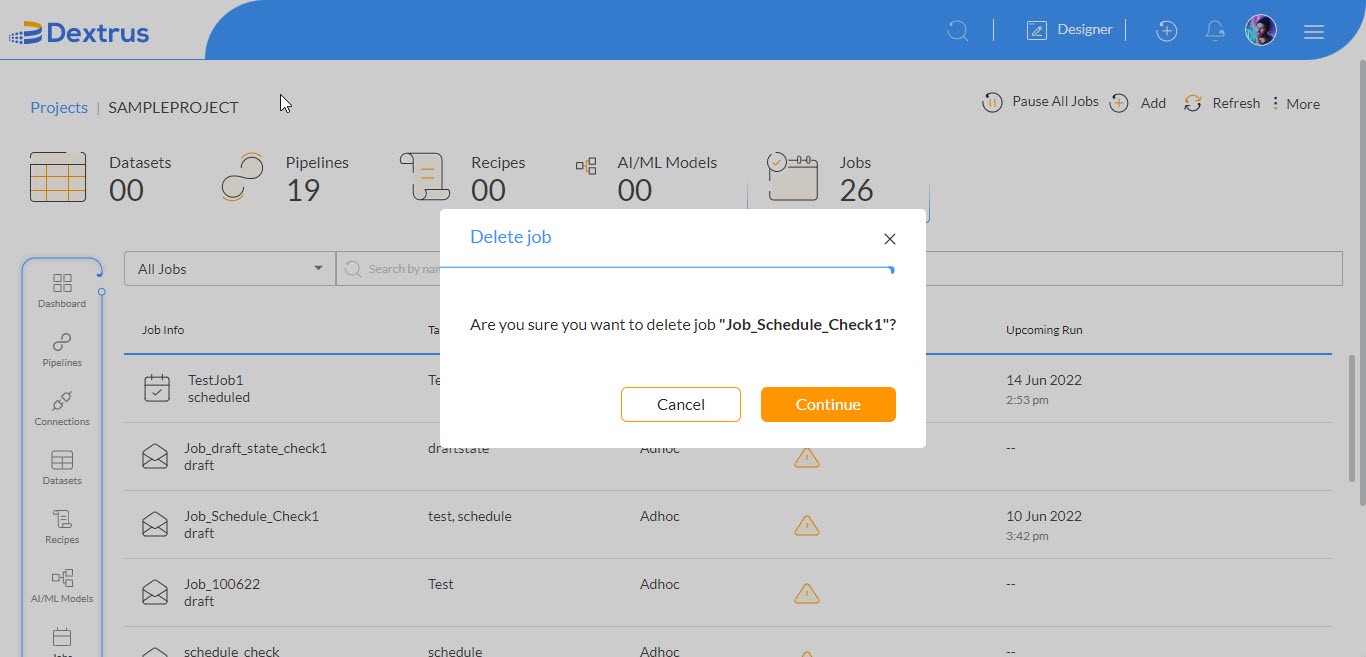
- A message ‘Job deleted successfully’ appears on the top of the page.
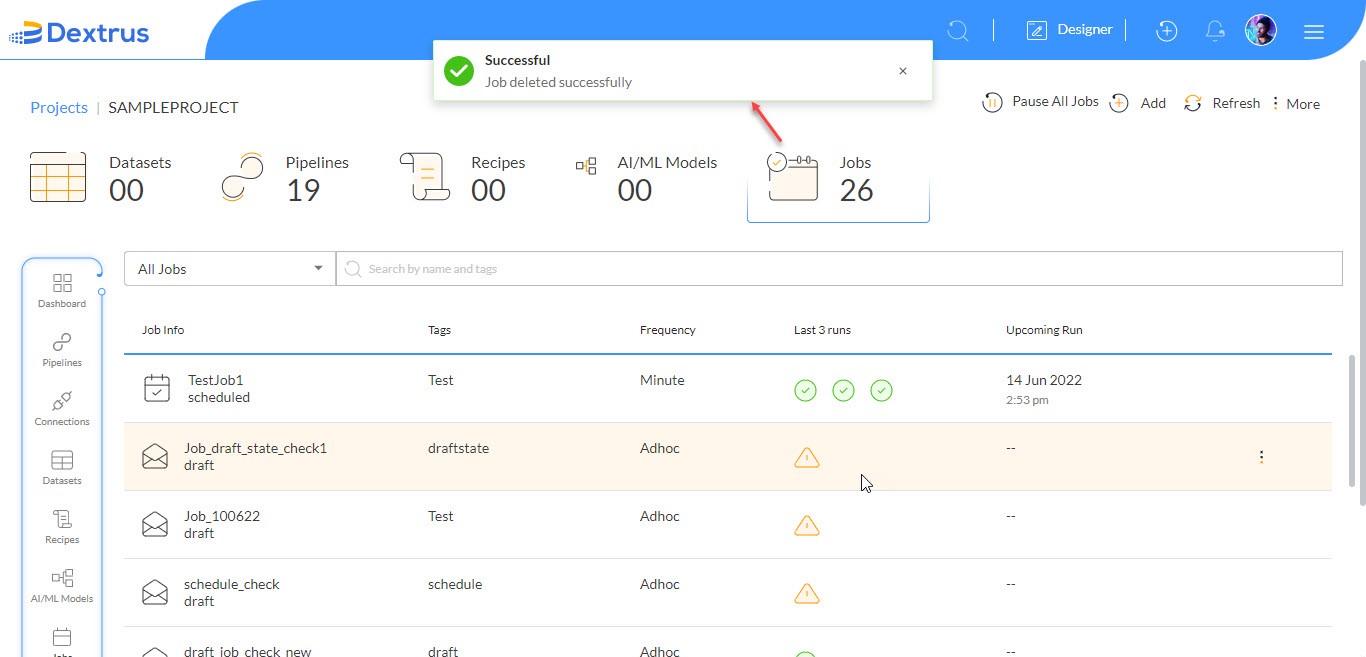
- Now let’s explore the options available for a scheduled job.
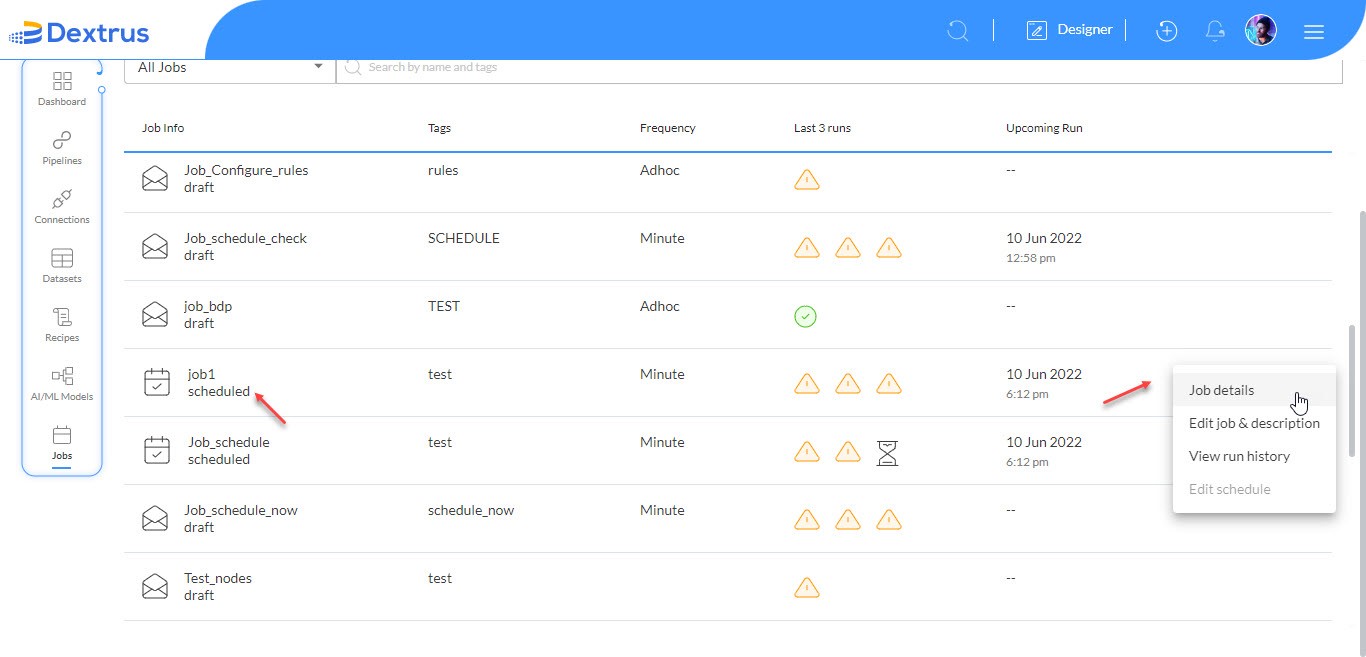
- Click the More option against the selected Job (scheduled).
- A list appears with Job details, Edit job & description, View run history, and Edit schedule options.
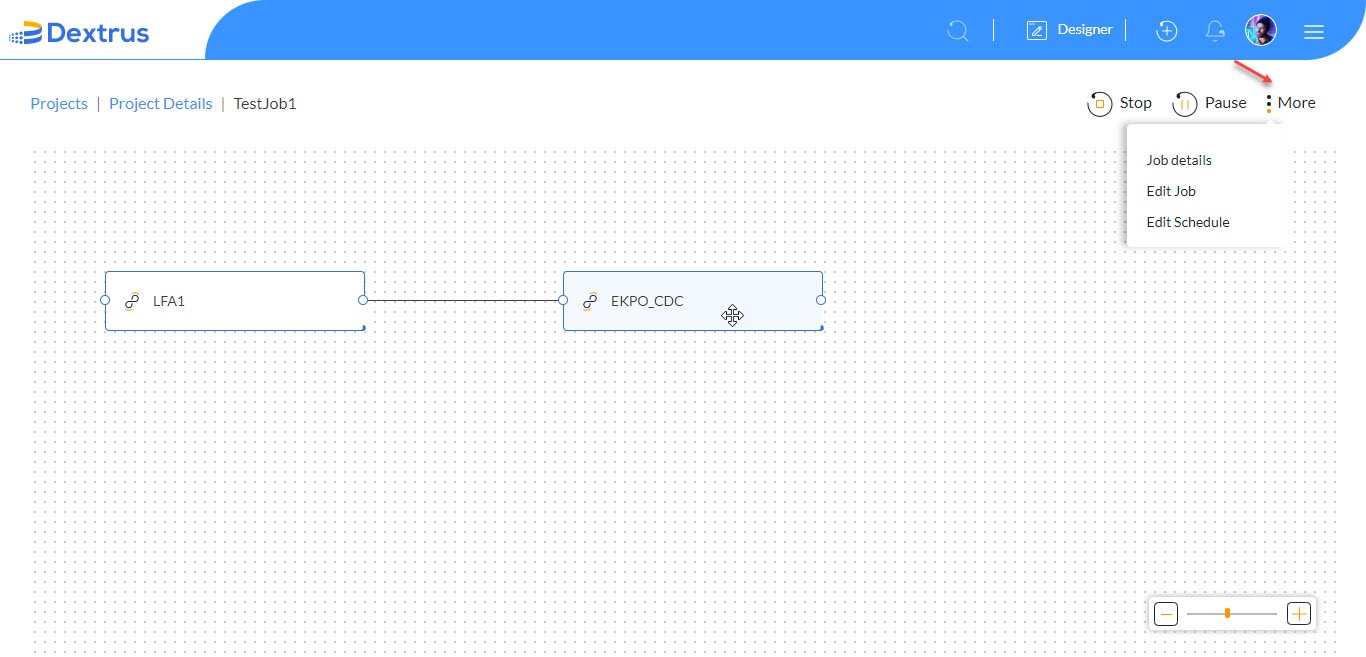
- Click the Job details option to view the job design page. Since this is a scheduled job, it displays Stop, Pause, and More options.
- Edit job & description: You can edit the Job name, Tags, and Description (optional).
- View run history: You can view the complete Job (Session) Details of the selected job.
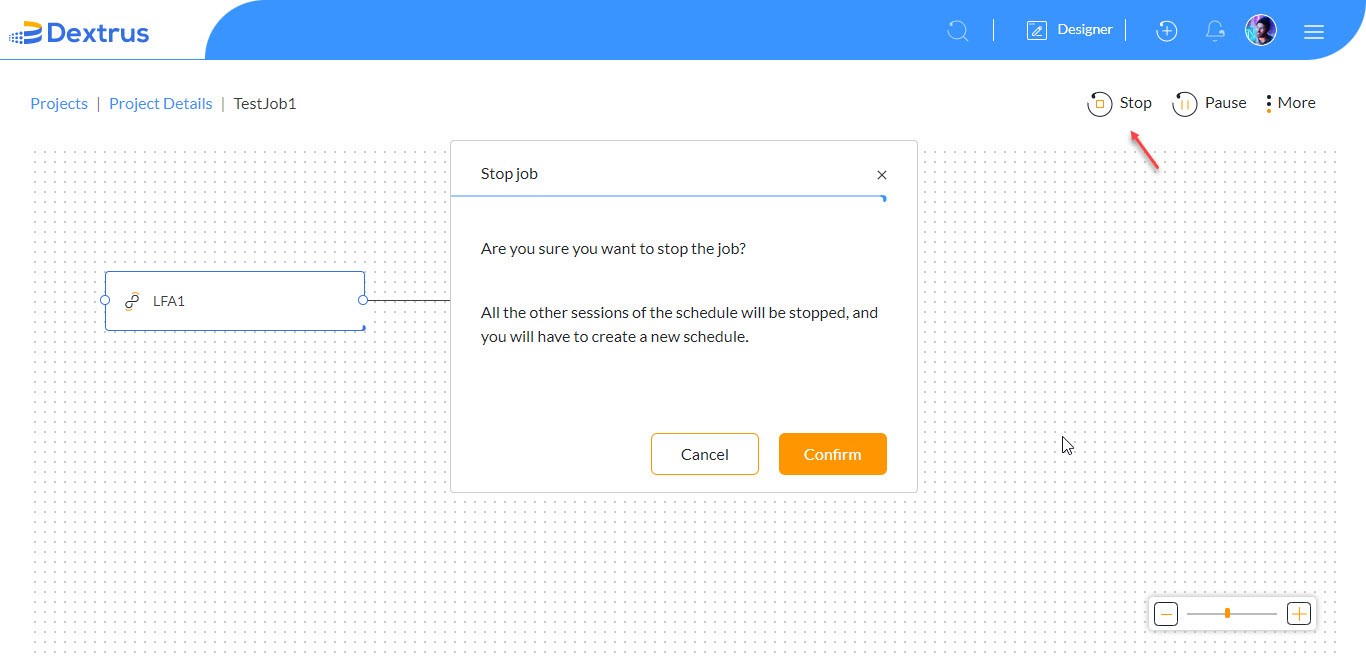
- The job design page displays Stop, Pause, and More options.
- Stop: Click the Stop button to stop the job.
- A Stop job pop-up window appears.
- Click the Confirm button to stop the selected job.
Note: All the other sessions of the schedule will be stopped and you will have to create a new schedule.
- The stopped job has to be scheduled again.
- The Job info for the stopped job changes to ‘draft’ and the More options gets updated with the Schedule job option.
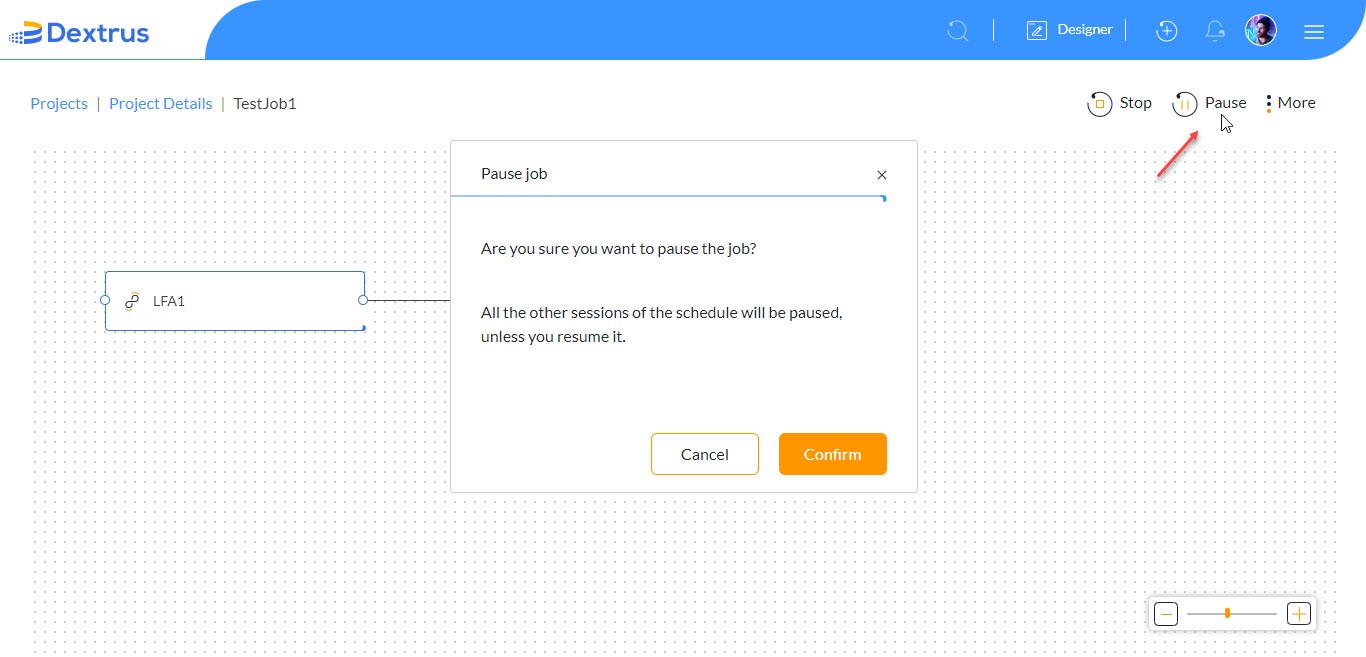
- Pause: Click the Pause button to pause the job.
- A Pause job pop-up window appears.
- Click the Confirm button to pause the selected job
Note: All the other sessions of the schedule will be paused, unless you resume it.
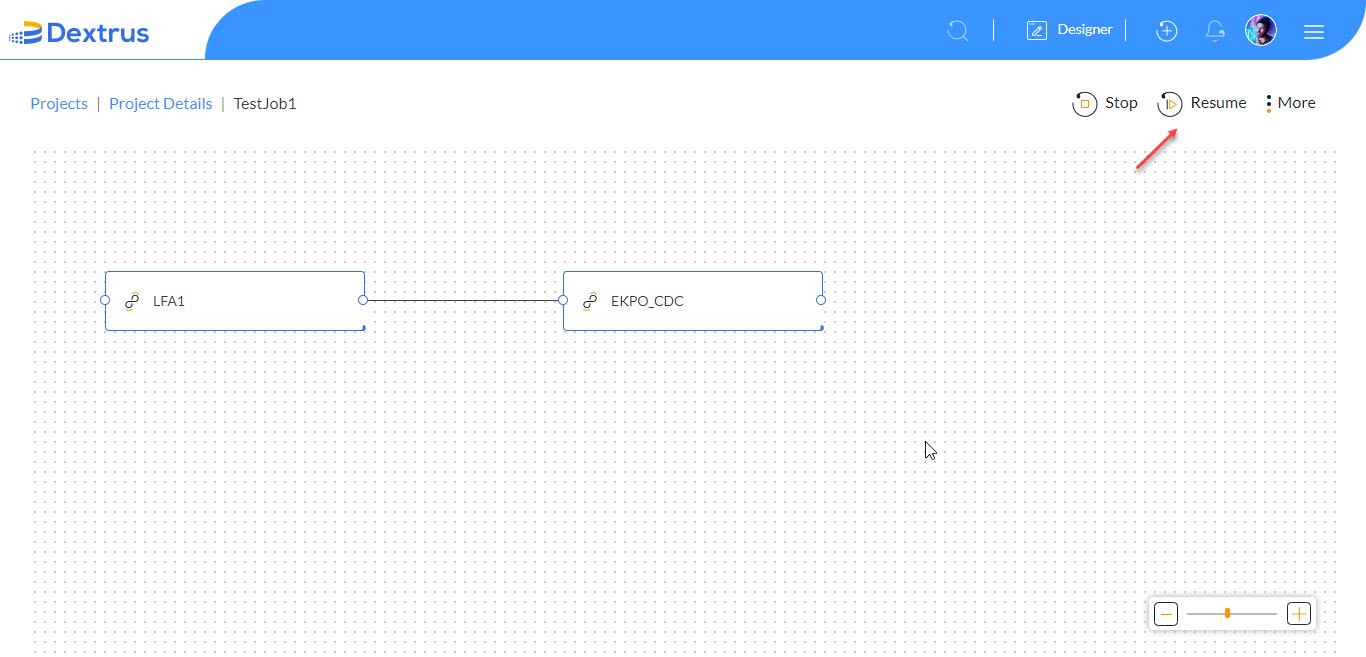
- The Pause button changes to the Resume button since the job is paused.
- The Job info for the scheduled job changes to ‘paused’ and the More options get updated with the Resume job option.
- Navigate back to the selected Project dashboard page again to view the updated job info status.
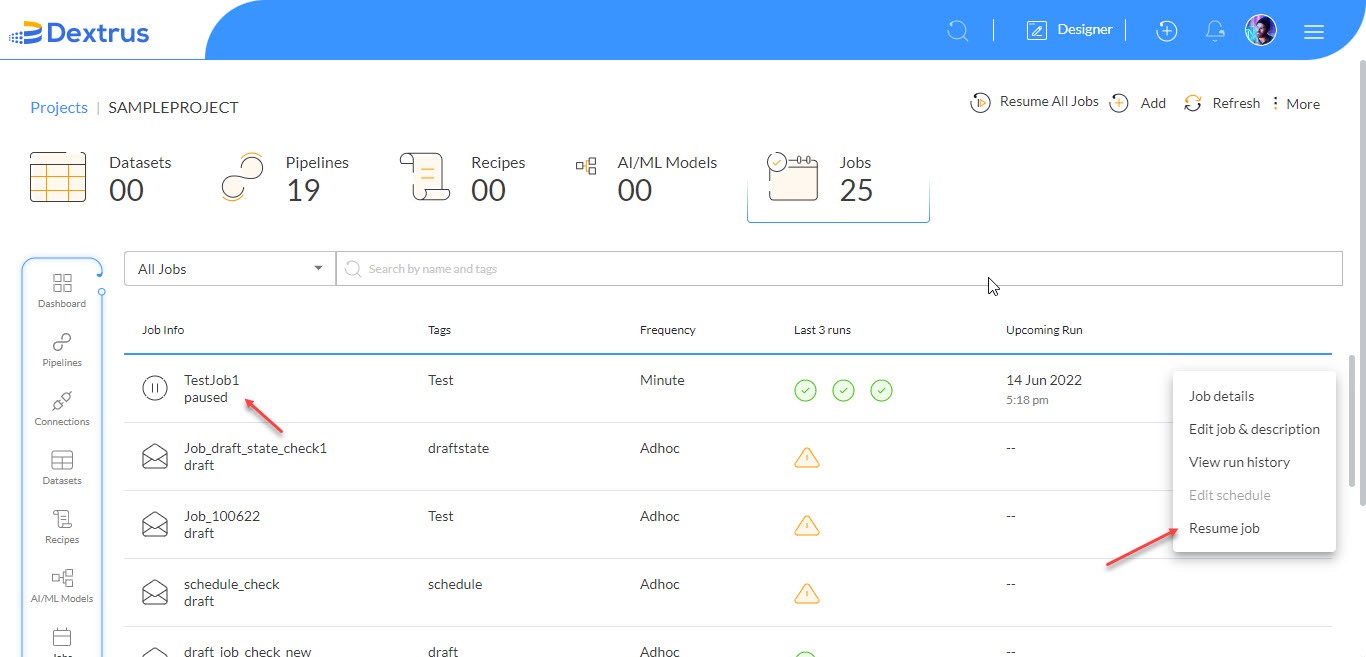
- Click the More option to view the selected Job details page (Session details), Edit Job, and Edit Schedule.