The Spark SQL node allows writing the spark SQL queries on the selected table and provisions to make modifications in the query to get desired results.
The spark SQL node has two ports. One input port and one output port.
Note: Multiple data sources can be fed to the input port of the spark SQL node.
Input Port -> Data that needs to be queried is connected to the input port of the spark SQL node.
Output Port -> One output port is populated with queried results. This updated resultant data is passed through the output port for further processing in the downstream nodes of the pipeline.

Configure the Spark SQL Node:
Spark SQL Node can be found in the Transformations Palette. The node can also be found through the search box next to Palette.
- Drag and drop the spark SQL node onto the canvas.
- The Configuration option (radio button) is enabled by default.
- The Configuration menu consists of Spark SQL Details and Options/Description
- Spark SQL Details comprises two sections namely, Search Table and Query canvas.
- The Search Table section displays the list of tables obtained from the source node. Alternatively, click the
 icon to search for a particular table.
 - The Query canvas section allows typing a spark SQL query to retrieve the desired output.
- Click the
 icon to enlarge the query canvas section.
 - Compile icon: Click the
 icon to compile the query.
 - Pretty Print icon: Click the
 icon to organize and structure the typed query with proper indentation.
 - Preview icon: Click the
 icon to preview the metadata of the typed query.
- Click the
- The Search Table section displays the list of tables obtained from the source node. Alternatively, click the
- Spark SQL Details comprises two sections namely, Search Table and Query canvas.
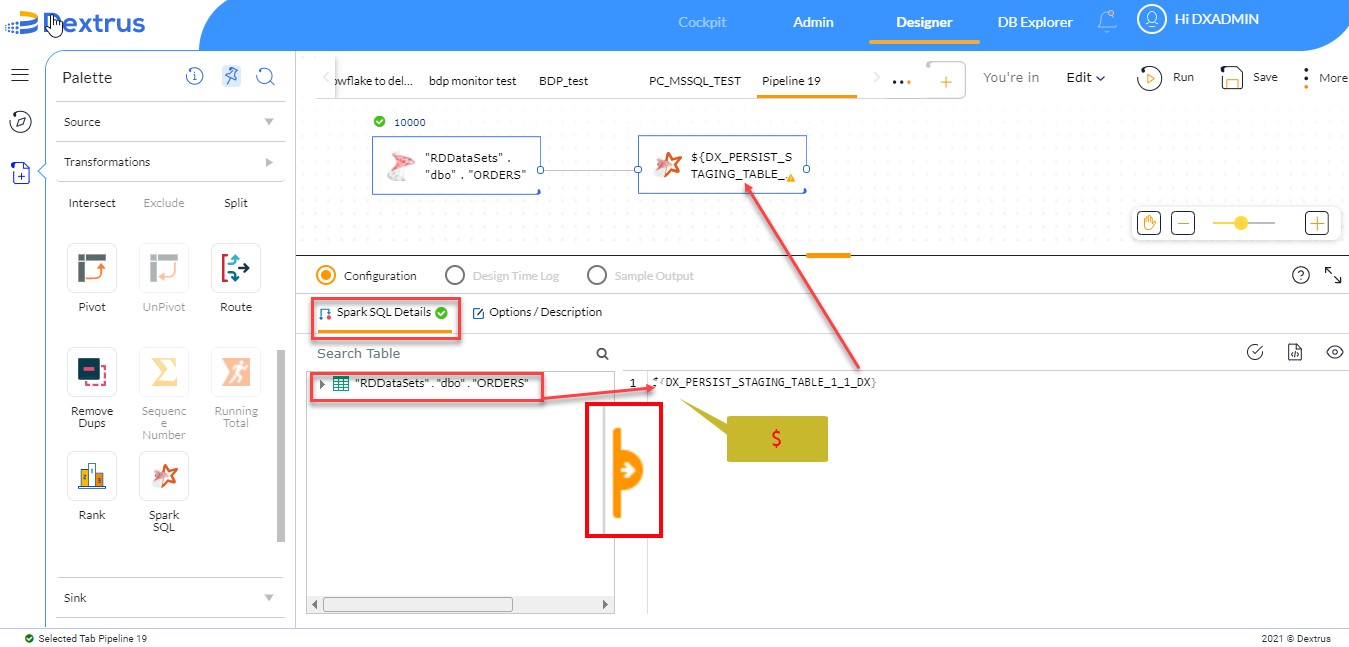
For example, let us consider an ORDERS table retrieved from the source node.
- Drag and drop the required table available under the Search Table section onto the Query canvas section.
- The dropped table appears within two flower braces starting with the prefix ‘$’.
${DX_PERSIST_STAGING_TABLE_1_1_DX}
Note: The $ symbol gets populated by default before the selected table when it is dragged and dropped onto the query canvas section.
- The above query with the prefix ‘$’ appears inside the spark SQL node as well.
- The query canvas section only allows to use and execute the ‘Select’ command as it helps to retrieve the required data from the table.
- Once the Select query is completed. Click the
 icon to implement indentation on the query to properly structure it.
 - Click the
 icon to compile the query.
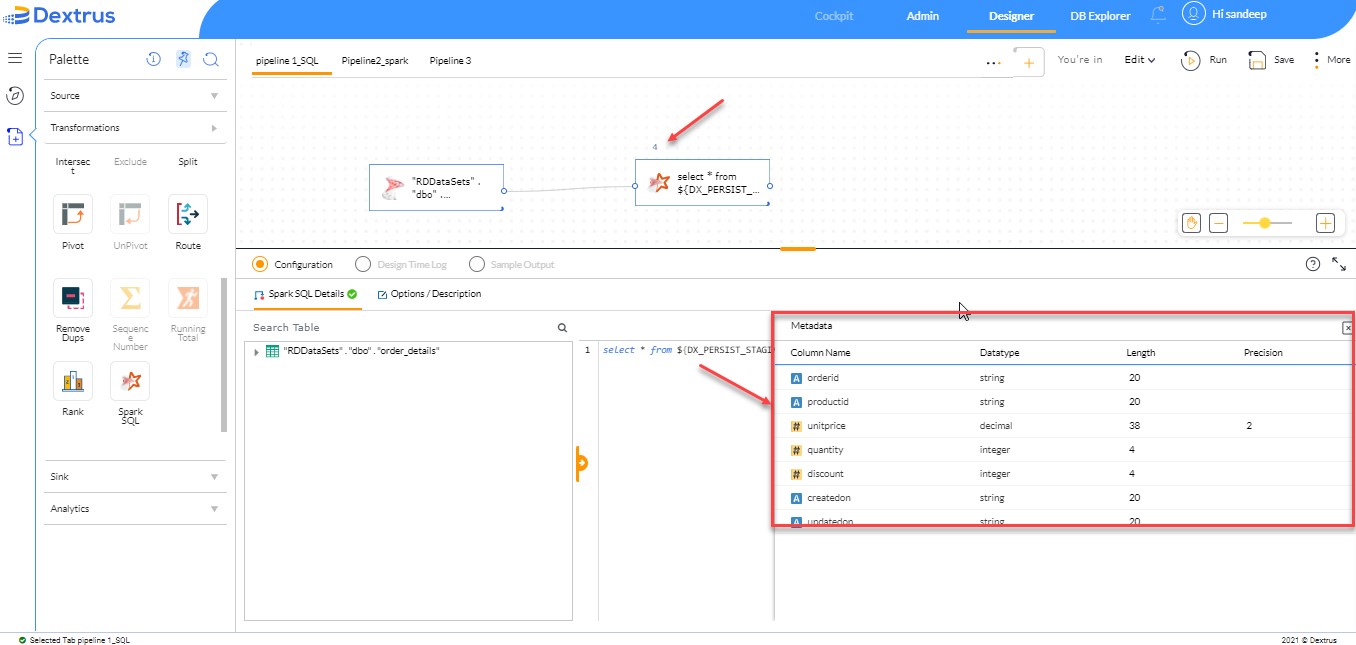
 - Once the compile process is successful, the metadata pop-up is populated on the query canvas section.
- Click the
 icon to close the metadata window.
Note: Length and Precision options can only be edited in the populated metadata window.
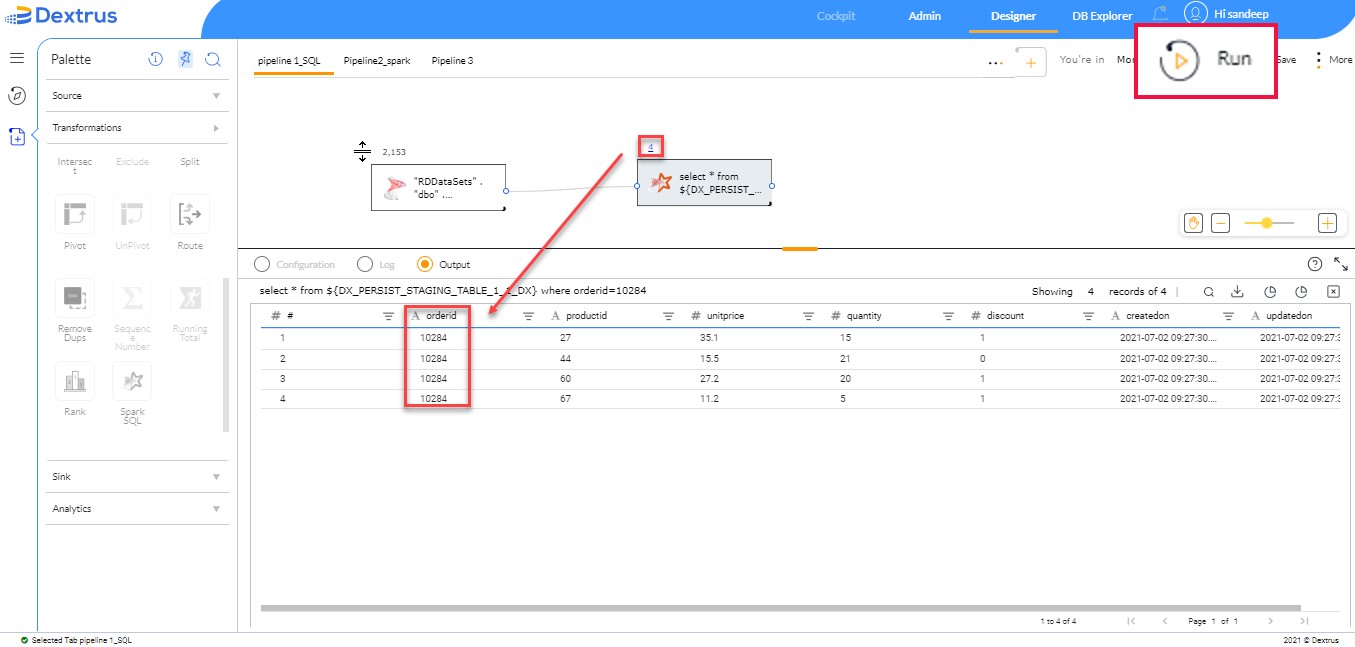
- Click the Run button to see the output.
- The output (records) is obtained based on the select query typed.
Options / Description:
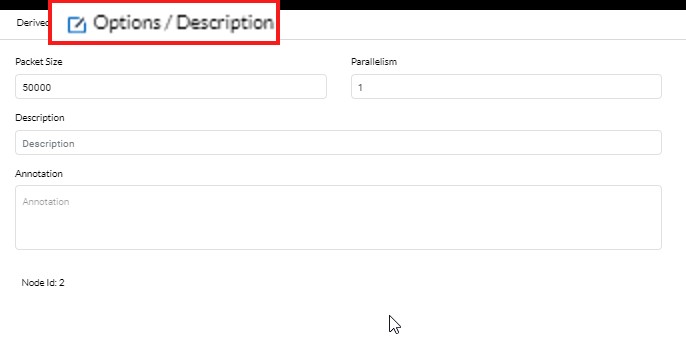
- Packet Size and Parallelism can be maintained here to achieve better performance.
- Annotation can be used to mention brief details of the functionality achieved in the filter node.
- Description can be used to provide more details of the filter conditions and can also be used to maintain a log or audit trail of all the changes done to the filter conditions over some time.