The Remove Dups node removes duplicates from the selected dataset. This node only allows the passage of unique records and restricts the passage of repeated records (duplicates).
The remove dups node has two ports. One input port and one output port.
Input Port -> Data that needs to be cleansed is connected to the input port of the remove duplicates node.
Output Port -> One output port is populated with unique records results. This updated resultant dataset is passed through the output port for further processing in the downstream nodes of the pipeline.
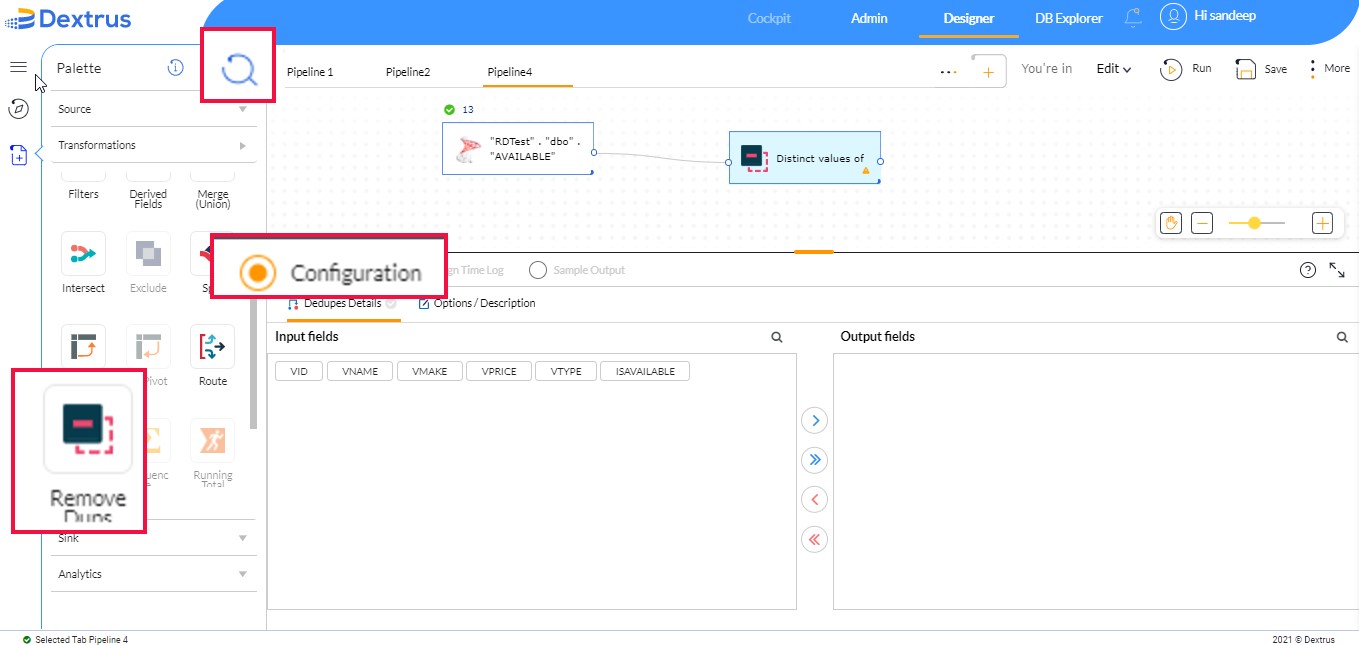
Configure the Remove Duplicates Node:
Remove Dups Node can be found in the Transformations Palette. The node can also be found through the search box next to Palette.
- Drag and drop the Remove Dups node onto the canvas.
- The Configuration option (radio button) is enabled by default.
- The Configuration menu consists of Dedupes Details and Options/Description.
- Dedupes Details comprises two sections namely, Input fields and Output fields.
- The Input fields section displays the list of column names (fields) obtained from the source node. Alternatively, click the
 icon to search for a particular column name (field).
 - The Output fields display the fields imported from the Input fields section. Alternatively, click the
 icon to search for a particular column name (field).
-
- Click the
 icon to push the selected input fields into the output field section.
 - Click the
 icon to push all input fields into the output fields section.
 - Click the
 icon to push back the selected output fields into the input field section.
 - Click the
 icon to push back all output fields into the input fields section.
- Click the
-
- The Input fields section displays the list of column names (fields) obtained from the source node. Alternatively, click the
- Dedupes Details comprises two sections namely, Input fields and Output fields.
For example, let us consider an RD Test table as the source node.
- Drag and drop the required RD Test table onto the canvas.
- Double-tap on the source to configure.
- Drag and drop the Remove dups node onto the canvas section.
- Create a pipeline connecting the source node (Right Test table) to the Remove dups node.
- Once the pipeline is created, the connected source nodes column names (fields) are displayed under the Input fields of Dedupes Details section.
- Click the
 icon to search for a particular column name.
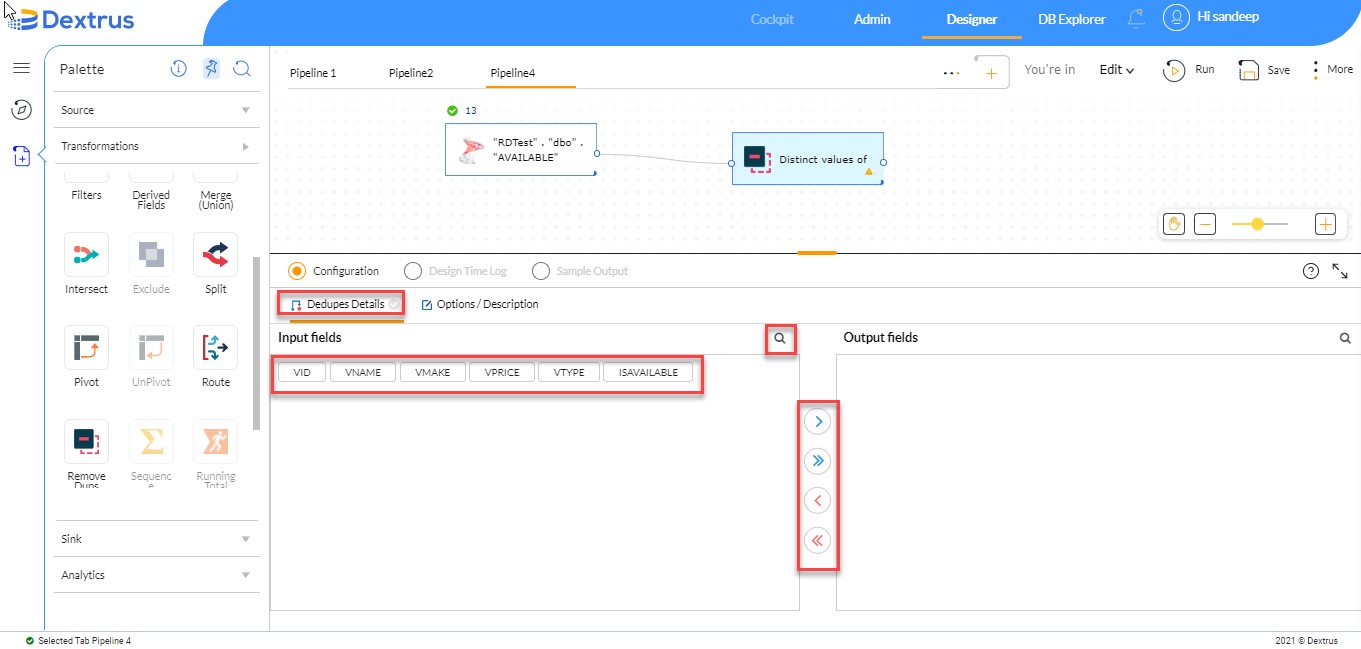
- Select the desired column name by tapping on the column name (field).
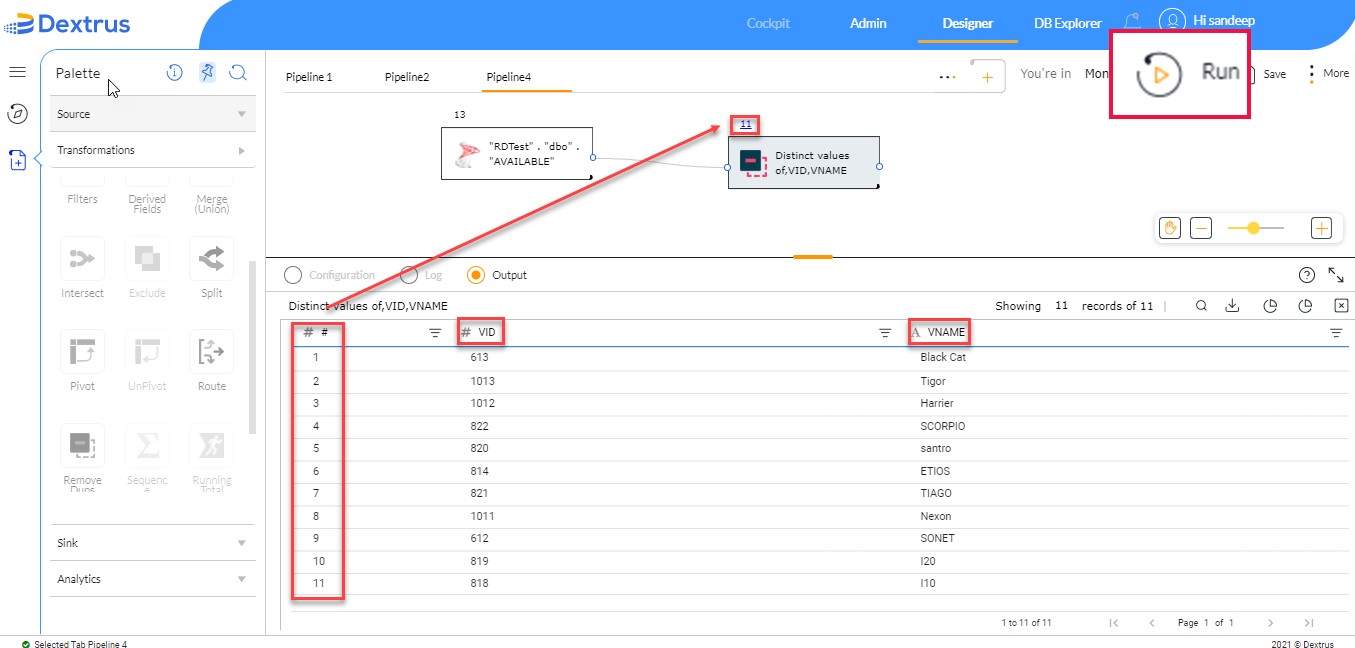
- Select ‘VID’ and ‘VNAME’ column names.
- Click the
 icon to push selected column names into the Output fields section.
 - Click the
 icon (if required) to push all column names into the Output fields section.
 - Click the
 icon to search for a particular column name in the Output fields section.
 - The selected column names are displayed in the Remove dups node available in the canvas.
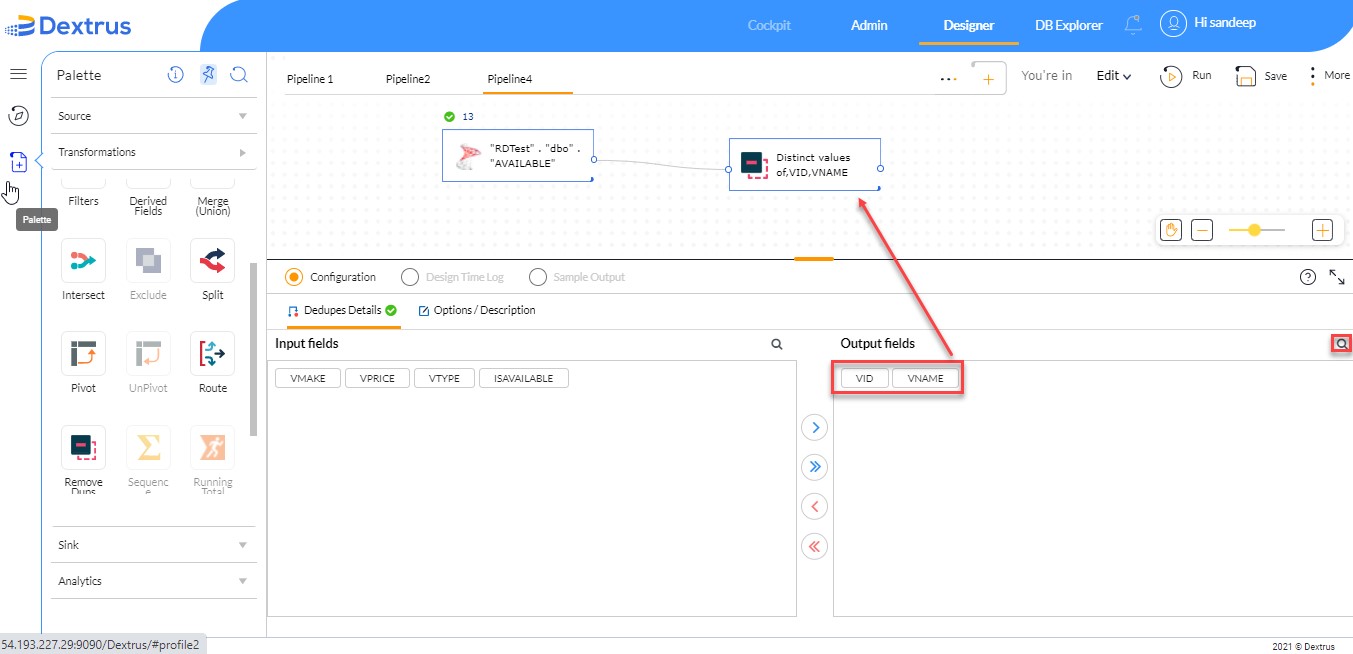
- Click the Run button to see the output.
- The output (records) resultant is obtained without any duplicates on selected column names (fields).
- All distinct values of selected column names are displayed.
Options / Description:
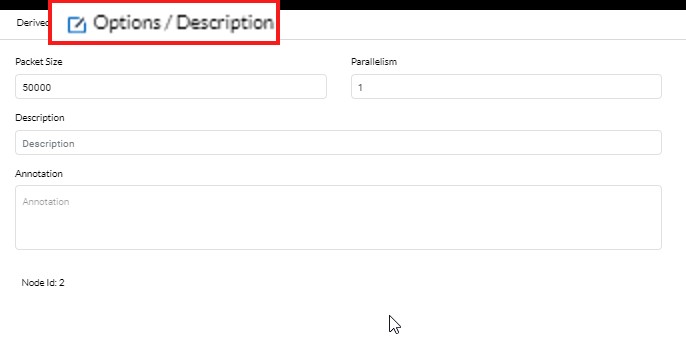
- Packet Size and Parallelism can be maintained here to achieve better performance.
- Annotation can be used to mention brief details of the functionality achieved in the filter node.
- Description can be used to provide more details of the filter conditions and can also be used to maintain a log or audit trail of all the changes done to the filter conditions over some time.