Configure a pipeline to define the flow of data from a source system to a target system. This configuration is achieved through Connection, Source Details, CDC Columns, and Options / Description properties. You can start the pipeline only after configuring the pipeline.
A pipeline includes multiple sources, transformation, and target systems.
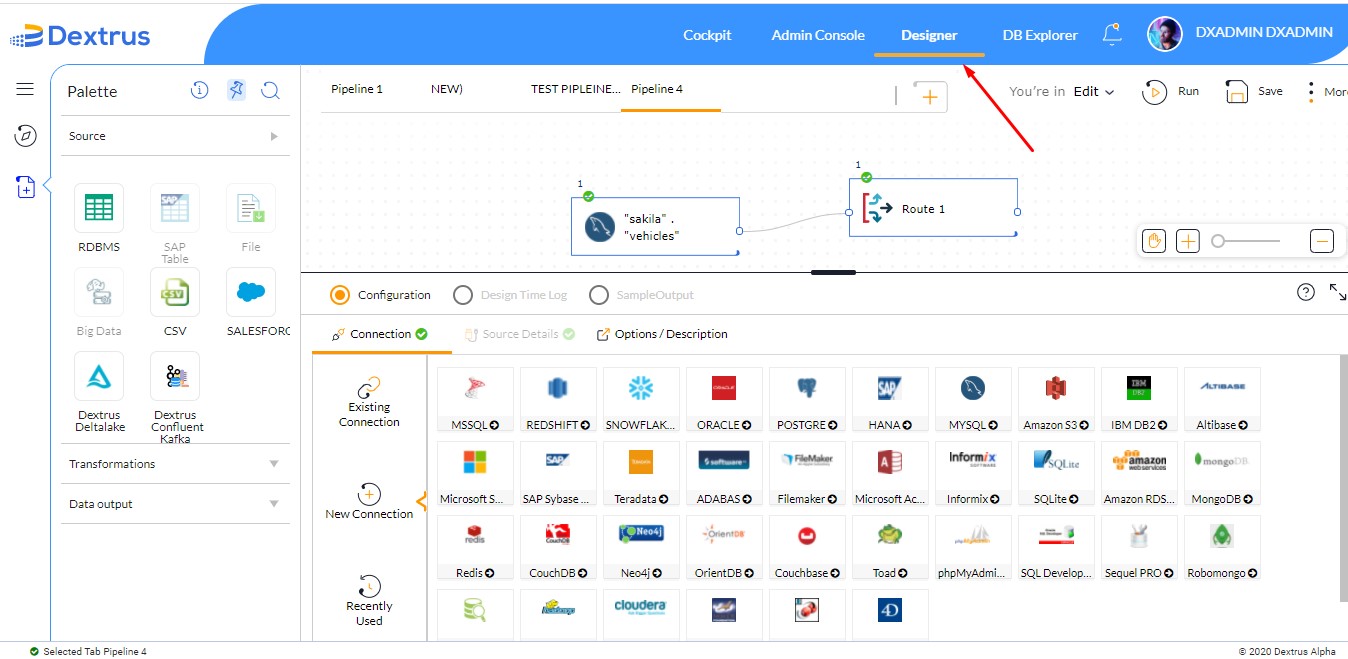
- The Designer tab of the Dextrus application is displayed by default when you open the application.
- In the Designer window, drag and drop the source node available in the palette onto the Dextrus canvas.
- You can see the Configuration window by double-tapping on the node in canvas.
- Click Connection.
- You can see Existing Connection, New Connection, and Recently Used tabs displayed vertically.
| Connection Type | Description |
| Existing Connection | Displays the list of already existing connections with Type, Name, and Category details specified. |
| New Connection |
A new connection enables you to choose a database from the Databases available in the application. Based on your selection you need to fill in the details Connection JDBC URL, User Id, Password, Driver class name, and click Test Connection to establish a new connection (Adhoc). You are facilitated to even use existing connections by clicking Reusable Connection. |
| Recently Used | The most recently used connections are displayed here. |
- The source details tab falls under Configuration. You must fill in details to retrieve data from tables using Direct input or Navigator.
- The Direct input feature comprises Catalog, Schema, and Table Name. These are called Namespaces for logical grouping.
- Catalog: A Catalog allows you to search for Catalog Names available. A drop-down list is shown for you to select any existing Catalog.
- Schema: A Schema is a next-level hierarchy for Catalog. It allows you to search for Schema Names available. A drop-down list is shown for you to select any existing Schema.
- Table Name: A Table Name should be typed in the text field provided.
Note: Table names are Case-sensitive. The resultant is displayed based on the text typed.
- When all the details are filled in click Enter from the keypad the resultant Table records are displayed specifying their properties in detail.
- When you switch to the Navigator, you can manually select the Database, Schema, Table, and View to directly retrieve all the records pertaining to the table selected. Ideally, this approach is friendly and easy to use.
- CDC Columns:
Change data capture pipeline is the process of detecting and capturing changes made to the data in a database and then consecutively pushing those real-time changes to a downstream system or widget.
In Dextrus, the CDC pipeline captures the data changes based on DATE and TIMESTAMP variables. The real-time process of capturing data changes in the source database and instantly moving them to the sink database keeps the systems in sync and intact. CDC pipeline is very efficient, as it captures data changes from the last sync rather than copying the entire database.
- The Options / Description is the continuation of the configuration process.
Packetization allows you to process data in packets. The unique feature is that you can declare the packet size in numerics (Packet size limitations: 1 to 1000000), based on the input value provided, the data is processed in packets, and output is obtained accordingly. Parallelism (Between 1 to 10) is also integrated with packetization, where data is processed parallelly to complete the transfer of data at faster rates.